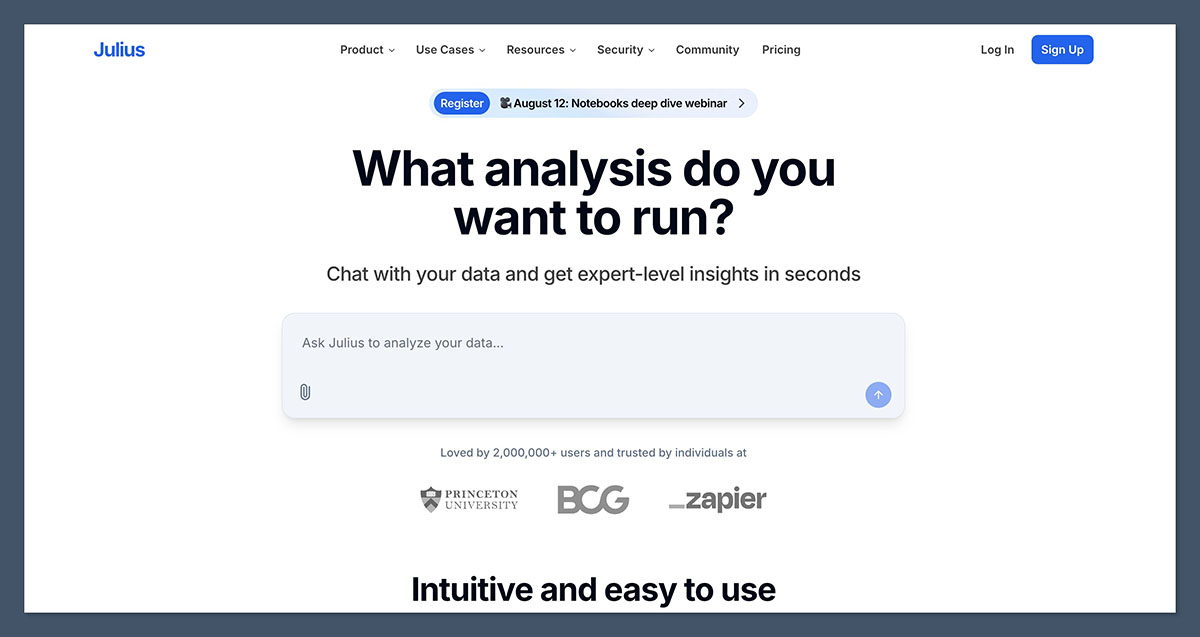
Analyzing a single Excel file of sales data means building pivot tables, drawing charts, reading trends — at least an hour. Toss the file into Julius AI and type "show me monthly revenue trends," and 30 seconds later you've got charts and insights.
What Is This?
Julius AI is an AI data analysis platform from the Y Combinator 2022 batch. Founder Rahul Sonwalkar worked on Uber's rider pricing team and Facebook's misinformation team before pivoting from a logistics startup at YC to "making data analysis accessible to everyone."
The concept is simple. Upload an Excel file and ask questions in natural language, and AI runs Python/R code to generate charts and analysis results. "Show me the top 10 products by revenue this quarter," "Draw a line chart of sales trends by region" — just like that. Zero coding knowledge needed.
In July 2025, they closed a $10M seed round led by Bessemer Venture Partners, and the angel investor lineup is impressive. Perplexity CEO, Vercel CEO, Replit founder, Notion founder, Dropbox founder, Zapier founder, and Twilio co-founder. It's rare to see this many industry leaders pile into an AI data analysis startup.
The supported file types are diverse too. Excel (.xls,.xlsx) and CSV are standard, plus Google Sheets integration and direct Postgres database connections. Visualizations range from basic charts (line, bar, pie, scatter) to heatmaps, treemaps, 3D plots, and Gantt charts.
Showing the code is the key differentiator
Julius shows the Python/R code it runs in the background during analysis. Instead of "AI just figured it out," you can see exactly what logic produced the results. You can even edit the code and re-run it. This is especially valuable for researchers where reproducible analysis matters.
What Makes It Different?
AI tools that help with data analysis already exist. Upload a file to ChatGPT and it analyzes it, Google Sheets has Gemini built in, and Excel has Copilot. But Julius occupies a different position.
| ChatGPT (Code Interpreter) | Google Sheets AI | Julius AI | |
|---|---|---|---|
| File size limit | 512MB | Sheet size limits | 8–32GB |
| Data analysis focus | General-purpose AI (analysis is a side feature) | Spreadsheet-centric | Data analysis dedicated |
| Supported languages | Python | Formula-based | Python + R |
| Persistent file storage | Re-upload every session | Google Drive integration | Permanent storage after upload |
| Visualization quality | Basic level | Basic charts | Heatmaps, 3D, Gantt & advanced charts |
| Code transparency | Code collapsible | Formulas only | Code displayed + editable |
| Price | $20/mo (Plus) | Free (included in Workspace) | Free–$20/mo |
Julius' core differentiator is being a "tool built specifically for data analysis." ChatGPT is a general-purpose AI that writes, codes, and generates images. Data analysis is just one of many features. Julius went all-in on that one thing: upload a file and ask questions. That's why the same question produces charts faster and prettier.
File management is different too. ChatGPT requires re-uploading files when sessions change, but Julius keeps uploaded files persistent so you can analyze the same dataset across multiple conversations. In practice, this difference is significant.
Good to know: Limitations are clear
Julius can't create real-time dashboards or auto-refreshing reports. Static file-based analysis is its core. Complex statistical modeling (regression, time series forecasting, etc.) is at a basic level, and complex queries joining multiple tables are still weak. Due to AI nature, it occasionally makes strange interpretations, so always double-check important numbers yourself.
The Essentials: How to Get Started
- Sign up at julius.ai
Create an account at julius.ai with Google or email. The free plan lets you try up to 15 messages per month. - Upload your data file
Drag and drop Excel or CSV files, or connect Google Sheets. Handles up to 32GB. - Ask in natural language
Just ask what you want analyzed: "Show monthly revenue trends," "Draw a pie chart of category breakdown." AI runs the code and shows results immediately. - Edit charts + ask follow-ups
If results aren't right, continue the conversation: "Change the colors," "Use a line chart instead of bars." You can also edit the code directly. - Export results
Download charts as PNG/SVG or share analysis results via link. Ready to drop into presentations and reports.