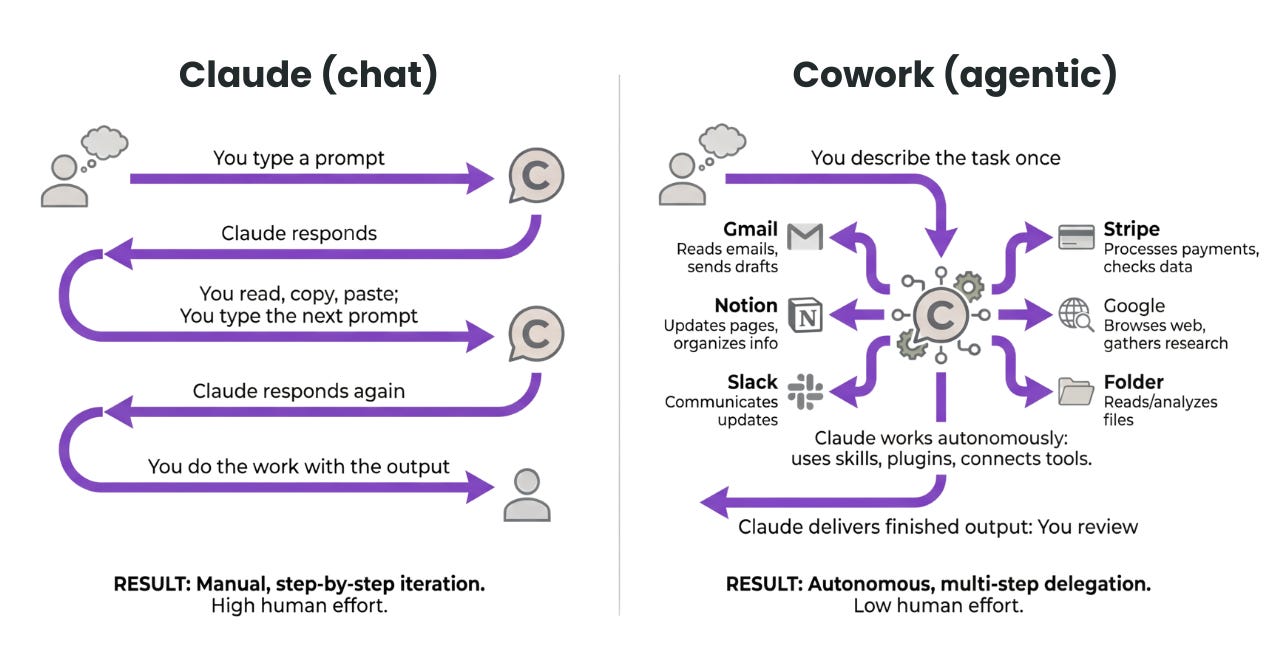
AI requests are backing up while the GPU on the PC beside you sits idle
When you run a coding agent and document summaries together on your main PC, one request waits for the other to finish. Even if an old gaming PC or laptop is powered on next to your desk, managing separate connection addresses and models for every application takes effort.
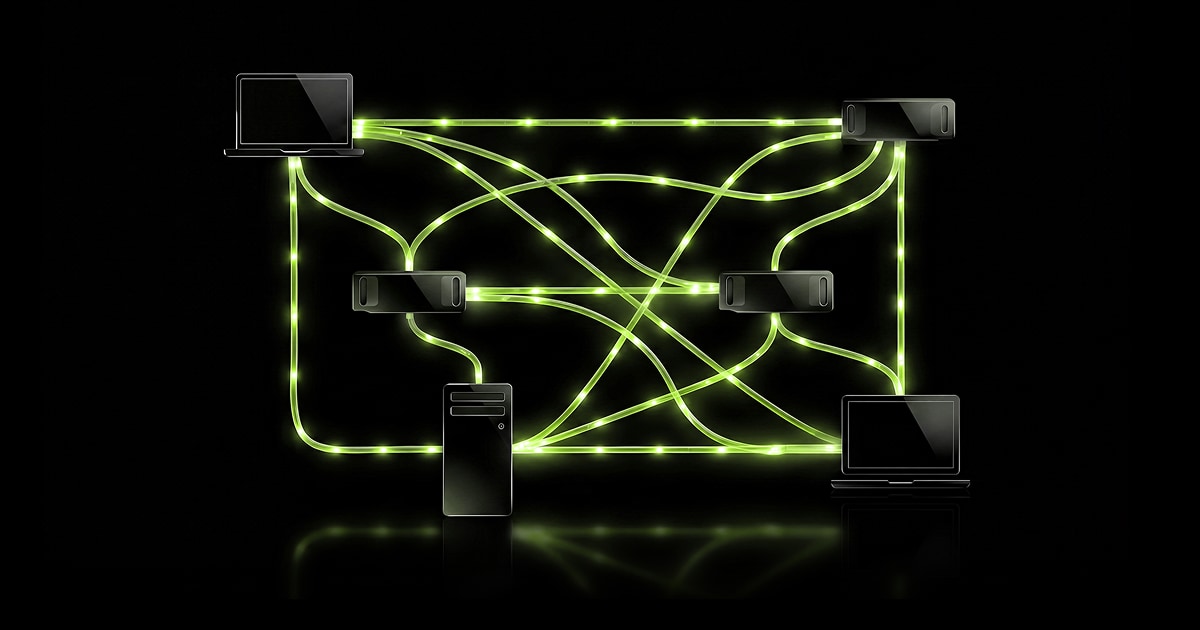
NVIDIA PAIR connects multiple computers behind a single local inference entry point in this situation. Apps make requests through one endpoint on the current computer, and PAIR selects one node that can run the requested model and sends the job there. It currently supports Ollama and LM Studio.
That said, connecting two PCs does not create one giant GPU. What PAIR reduces is the time multiple independent requests spend waiting in front of one GPU. Below, you will first prepare a model only on the second PC to verify remote execution, then add the same model to the first PC to distribute concurrent requests.
First, understand this: VRAM is not combined
In PAIR, one request is handled from start to finish by one selected node. It does not support GPU memory pooling, making multiple GPUs act as one logical GPU, model sharding, or splitting an in-progress request across nodes.
| What you want to do | PAIR fit | Why |
|---|---|---|
| Handle independent requests from coding, search, and summarization agents at the same time | Good fit | Each request can be placed on a different eligible node |
| Reduce inference queues across several local apps | Good fit | Provides Ollama and OpenAI-compatible proxy routes |
| Run a 48GB model with two 24GB GPUs | Not a fit | Does not combine VRAM or split a model across nodes |
| Increase the generation speed of one request by the number of PCs | Not a fit | A single request runs on only one node |
In NVIDIA’s public demo, five subagents using Qwen 3.6 35B A3B took an average of 18 minutes on one RTX Spark laptop, and an average of 8 minutes 48 seconds across three machines: that laptop plus a DGX Spark and RTX 5090. NVIDIA also describes this as an unofficial demo for a specific configuration. Since the number of runs and time variance were not disclosed, it should not be read as a general promise of 2× acceleration.
Not both PCs—eligible execution nodes need the same model
For a computer to receive a request, it must be online, have Ollama or LM Studio running, and have the exact model named in the request. Replicating the same model across multiple execution nodes increases the pool of candidates that can receive requests for that model.
Conversely, not every computer in the cluster needs an engine and models. The computer running an app only needs to join the PAIR cluster and provide a local proxy; it does not need a GPU or its own inference engine. Prepare the engine and model on nodes that will actually process requests.
For your first test, start with two similarly specced machines and one small shared model.
The current scheduler mainly considers queued jobs and gently adjusted GPU utilization. It does not account for GPU model, available memory, latency, whether the model is loaded in memory, or request cost. Mixing PCs with very different specs may select a slower node and make diagnosis harder.
PAIR itself can mix x64 and arm64 nodes on Windows 11, Linux, and macOS, while Windows on ARM support is experimental. Distribution files are provided as .exe for Windows, .deb for Debian-family Linux, and .dmg for macOS. You still need to verify separately that the engine and selected model actually run on each node under its operating system, GPU, driver, and memory conditions.
Connect two PCs using the official download
You need two computers on the same trusted local network, space to store models, and an internet connection for downloads. PCs that will execute requests need enough memory to run the selected engine and model. You can use the terminal interface on a headless server, but some features, including execution-node display, are limited, so the desktop app is more convenient for initial verification.
- Download the file for each operating system from the official NVIDIA PAIR page. On Windows, run the installer; on macOS, move the app from the
.dmgto Applications. On Debian-family Linux, runsudo apt install./NVPAIR-Setup-*.debfrom the download directory. Other Linux families may require a source build. - Open PAIR on each computer. During first-run setup, you can install and start Ollama or LM Studio, or select an engine that is already running. The first PC can be used only as the request-sending client, so it does not need its own engine. On the second PC, run the engine that will actually handle requests and confirm that Overview shows the node and engine status.
- Invite the second PC from the first PC. Open Add node or Settings → Cluster → Available nodes and select the other PC. Enter the six-digit PIN displayed on the first PC into the invited PC. If automatic discovery fails, you can add it directly by IP address. If you use a restrictive firewall, allow UDP 5353 for mDNS discovery on the local LAN, TCP 14318~14323 for inter-node services, and ensure the proxy port shown under Endpoints or Engine settings for the engine you use is reachable between paired nodes. Default ports are Ollama 11434 and LM Studio 1234, but use the actual values displayed in the app. Adding by IP does not rely on mDNS discovery, but TCP 14318~14323 and the engine proxy port are still required. After connecting, both devices should appear under Connected nodes or in Overview.
- Prepare the model for the first verification only on the second PC. Select the second PC in Overview, then go to Engine settings → Add model and download a small model that comfortably fits in that PC’s memory. If the engine requires explicit loading, also click Load. Do not install the same model on the first PC yet, so the execution destination is limited to the second PC.
- Copy the actual address from Endpoints on the first PC, where the app will run. The Ollama proxy normally uses
http://127.0.0.1:11434, and the LM Studio proxy normally useshttp://127.0.0.1:1234, but port conflicts or configuration changes are possible. Do not manually enter the defaults; use the address shown on the Endpoints screen. - Check the model list first, then send a chat request. Call
/v1/modelsat the copied address to confirm that the model prepared on the second PC is visible. Then send an OpenAI-compatible/v1/chat/completionsrequest, which both Ollama and LM Studio support.curl <PAIR_BASE_URL>/v1/chat/completions \ -H "Content-Type: application/json" \ -d '{"model":"<MODEL_NAME>","messages":[{"role":"user","content":"Explain what a router does in one sentence."}]}' - Confirm that the second PC handled it in Overview’s Jobs. If the second PC appears under Ran on or Running on on the job card, the request sent to the first PC’s loopback endpoint ran on another node. If the same model is already installed on both sides, delete that model from the first PC or exclude the first PC from execution candidates before sending the request again to verify the destination with certainty.
- After confirming remote execution, add the same model to the first PC. If the first PC now meets the execution requirements, install the exact same model tag in the same engine and click Load if needed. Send several independent requests at the same time, then check Jobs to see whether both the first and second PCs are recorded as execution nodes; this lets you continue into load-distribution testing.
Do not connect directly to another PC’s port
PAIR’s plaintext HTTP inference endpoints accept requests only on that computer’s loopback address, 127.0.0.1. The design is not for another LAN computer to connect directly to that PC’s 11434 or 1234 port. Install PAIR on the computer running the app as well, and use that computer’s local endpoint.
Key communication between paired nodes uses authenticated channels and mutual TLS. However, the six-digit PIN is a temporary code for initial trust setup, and some node discovery assistance (discovery enrichment) and node-information traffic may use plaintext HTTP. Connect on a trusted home or private office network rather than a shared office network or public Wi-Fi, and do not expose PAIR or engine ports to the internet.
If the screen gets stuck, check the service and ports first.
If Overview remains on Loading..., check the status and logs in Settings → Service, then restart the service. If Endpoints shows No engines are running, start the engine on an eligible execution node first. If another process occupies the proxy port, change the PAIR port on the same screen or stop the conflicting process.
The success metric is waiting time for overlapping requests, not peak speed
When validating, measuring only tokens per second for a single request misses PAIR’s benefit. Send the same batch of independent prompts concurrently on one node and on multiple nodes, then compare total completion time, wait time per request, number of failures, and output quality. Also keep the execution-node records from Jobs so you can distinguish actual distribution from a simple change in speed.
Try including changing node conditions too, such as laptop sleep, an engine stopping, or a game running. PAIR’s value is not forcing one huge model to run. The key is adding idle PCs as candidates when independent requests arrive at the same time, such as multiple subtasks from a coding agent.
If you want to go deeper
Getting Started with NVIDIA Personal AI Router — Follow installation, PIN pairing, firewall ports, model preparation, endpoint calls, and Jobs verification using the actual menus. docs.nvidia.com
Managing Engines in NVIDIA Personal AI Router — Explains in detail how PAIR detects and manages engines it installed and engines already running. docs.nvidia.com
Known issues — Check GPU performance, memory, model-load state, and current limitations that the scheduler does not yet consider. docs.nvidia.com
Security: NVIDIA/Personal-AI-Router — Explains loopback-only endpoints, mutual TLS, and the boundary of a trusted LAN. github.com