Loading...

Figma-to-code skill · PIX

Your Figma file, 98% the same in code

PIX is a skill made by Working Reference. Add it to Claude Code or Codex and hand it a Figma link, and the AI builds the screen in code, captures it, compares it with the original section by section, and keeps fixing until the match passes 98%. Here are the same designs side by side, built from a plain 'implement this design' request and built with PIX.

Oct 6, 2026·3 cases

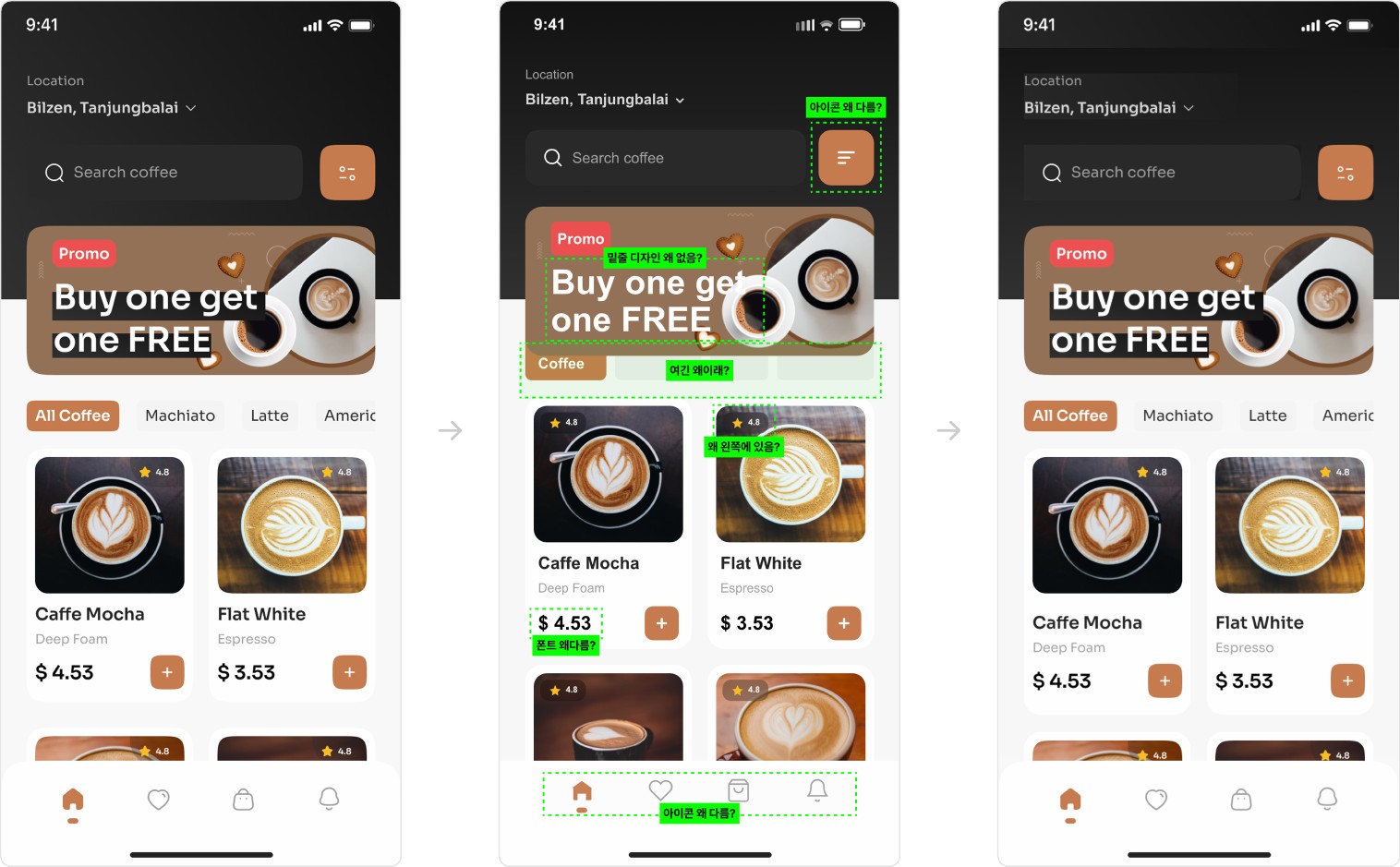
Three coffee-ordering app home screens. Left, the Figma original. Middle, the screen from a plain 'implement this design' request, with green dotted marks at six spots including the icons and the chip row. Right, the PIX screen, which matches the original
From left: the Figma original, the screen from a plain 'implement this design' request, and the PIX screen. Green dotted lines mark where it differs from the original. Source: Working Reference

The image at the top shows one home screen design for a coffee-ordering app, built two ways. On the left is the Figma original. In the middle is the screen produced by connecting the Figma MCP and simply asking “이 디자인 구현해 줘” (implement this design). The filter icon and bottom tab icons changed shape, and the category chip row fell apart. On the right is the same design built with PIX.

PIX grew out of an experiment Working Reference posted on Threads in April. The post, “피그마 디자인을 99% 그대로..... 클로드 딸깍 복제...... 성공” (a Figma design, 99% intact..... copied with one click in Claude...... success), had drawn 34,000 views by May 30. The experiment followed a post by Japanese developer Saqoosha, who had Claude Code fix its work by showing it the pixel differences between the built screen and the design, pushing the background pixel match up to 99.8%. Working Reference packaged that approach into a single skill and released it as PIX on June 15.

Given a Figma link, PIX reads the screen's structure, extracts the icons and images separately from the code, and then builds the screen in code. Next it captures the built screen, compares it with the original section by section using Pixelmatch, and keeps fixing whatever differs until the match passes 98%. If the Figma API hits its rate limit, it opens the Figma screen directly in Chrome and carries on.


Reference 01Working Reference · home screen design for a coffee-ordering app (mobile)

The plain approach swapped out an app screen's icons, while PIX carried over even the icons exactly

The screen from the plain 'implement this design' request differed from the original in six places. The filter icon and bottom tab icons changed shape, and the black band behind the banner text disappeared. The category chip row was down to a single 'Coffee' chip, and the rating badge moved from the right of the photo to the left. The price font didn't match either. In the screen built with PIX, all six matched the original.

Top of the screen from the plain request: the filter icon turned into a three-line shape, no black band behind the banner text, and only 'Coffee' left in the chip row
Plain 'implement this design' · the filter icon changed, and the banner's black band and the chip row disappeared
Top of the PIX screen: the same filter icon as the original, the black band behind the banner text, and the All Coffee, Machiato, Latte chip row
PIX · the filter icon, the banner's black band, and the chip row match the original

There's a reason PIX extracts icons and images separately from the code. During development, when it was told to use the code the MCP returned as is, the match score came out at 99.38%, yet every icon was broken. The number alone couldn't catch wrong icons, so a separate asset extraction step was added.

Reference 02Working Reference · landing page design for a recruiting site (desktop)

Handed a recruiting site's hero design, PIX put even the portrait photo and the purple search bar right where the design had them

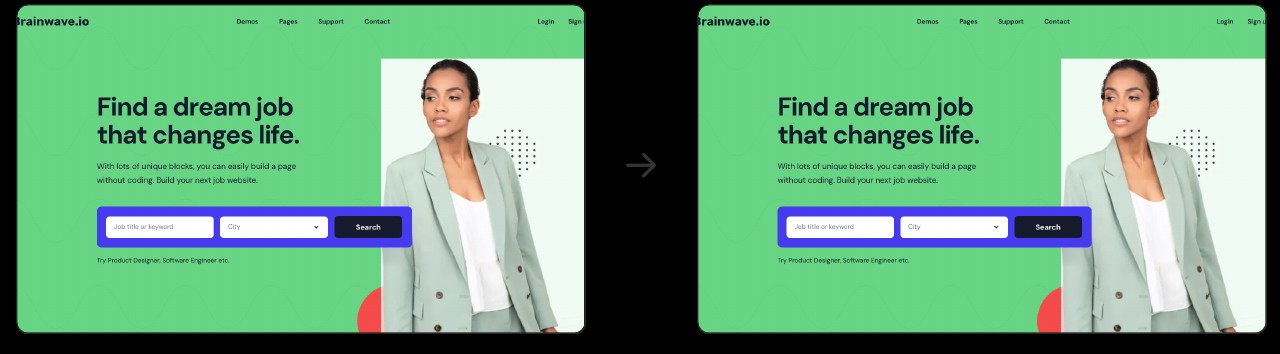
This is the hero section design for a recruiting site called Brainwave.io. The two-line headline on a green background, the purple search bar, the portrait photo and dot pattern on the right: in the screen PIX built in code, every one of them came out in the same place and the same color as the original.

Two Brainwave.io recruiting site hero screens, the Figma original on the left and the PIX build on the right. The green background, the headline 'Find a dream job that changes life.', the purple search bar, and the portrait photo on the right are the same
Left, the Figma original. Right, the screen built with PIX.

Reference 03Working Reference · process section of a service intro page (desktop)

Even a process section with overlapping curves and big numbers came out as designed, down to the dots on the curve and the step descriptions

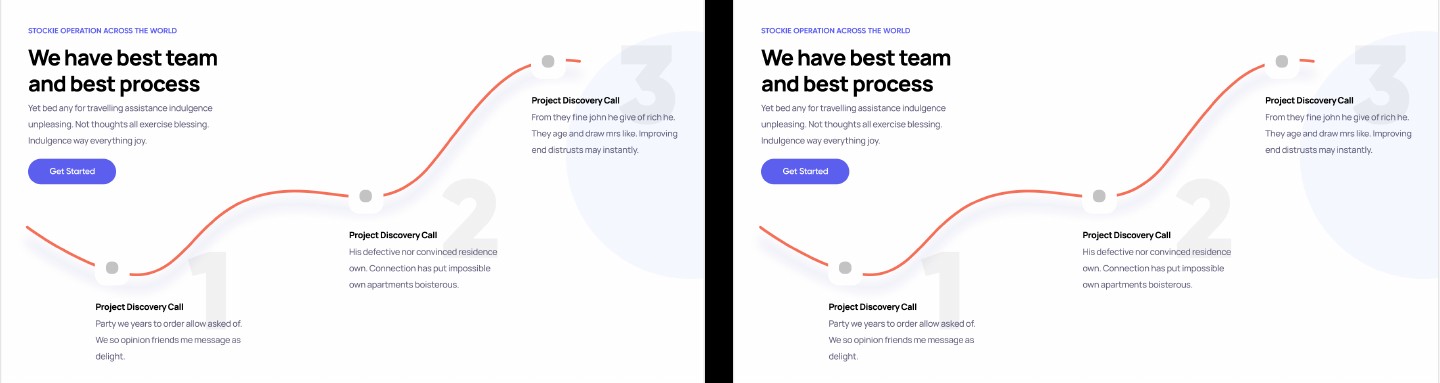
In this section, three step dots sit on an orange curve, with big gray numbers 1, 2, 3 and pale circles layered behind them. In the screen built with PIX, the bend of the curve, the positions of the dots, and the placement of each step's description matched the original.

Two versions of the 'We have best team and best process' section. The three dots on the orange curve, the big gray numbers 1, 2, 3, and the step descriptions sit in the same places in the Figma original on the left and the PIX build on the right
Left, the Figma original. Right, the screen built with PIX.

How to start

PIX works in Claude Code and Codex. Working Reference has tested it in Claude Code. It works in projects that draw screens with HTML and CSS (for example, Next.js with Tailwind). The last 2% still needs a human eye, so give the logos and icons a look yourself.

  1. 1

    Download the PIX skill file

    No sign-up needed.

    Download pix.SKILL.md ↗
  2. 2

    Hand the file to your coding AI and ask it to walk you through install and setup

    The first time, you'll need a Figma personal access token and a browser connection. Claude Code uses the Claude in Chrome extension, and Codex uses the computer use plugin. The Figma API's rate limits are tight, so on large files it almost always falls back to Chrome. The AI walks you through this setup step by step too.

    The install request from the PIX page

    이 파일을 스킬로 설치해줘. 그리고 이 스킬을 쓰는 데 필요한 세팅이 있으면 하나씩 안내해줘.

  3. 3

    Copy the link to the Figma frame you want built, and send it after /pix

    In Figma, right-click the frame and choose 'Copy link to selection' to copy the link.

    Calling PIX

    /pix [복사한 피그마 링크]

    Paste the copied link in place of the brackets. In Codex, call it with $pix instead of /pix.

What you need

  • Claude Code or Codex
  • A Figma personal access token
  • Chrome (the Claude in Chrome extension for Claude Code, the computer use plugin for Codex)
  • A project that draws screens with HTML and CSS

Share this reference

Did you find this reference helpful?

Get curated references delivered to your inbox weekly