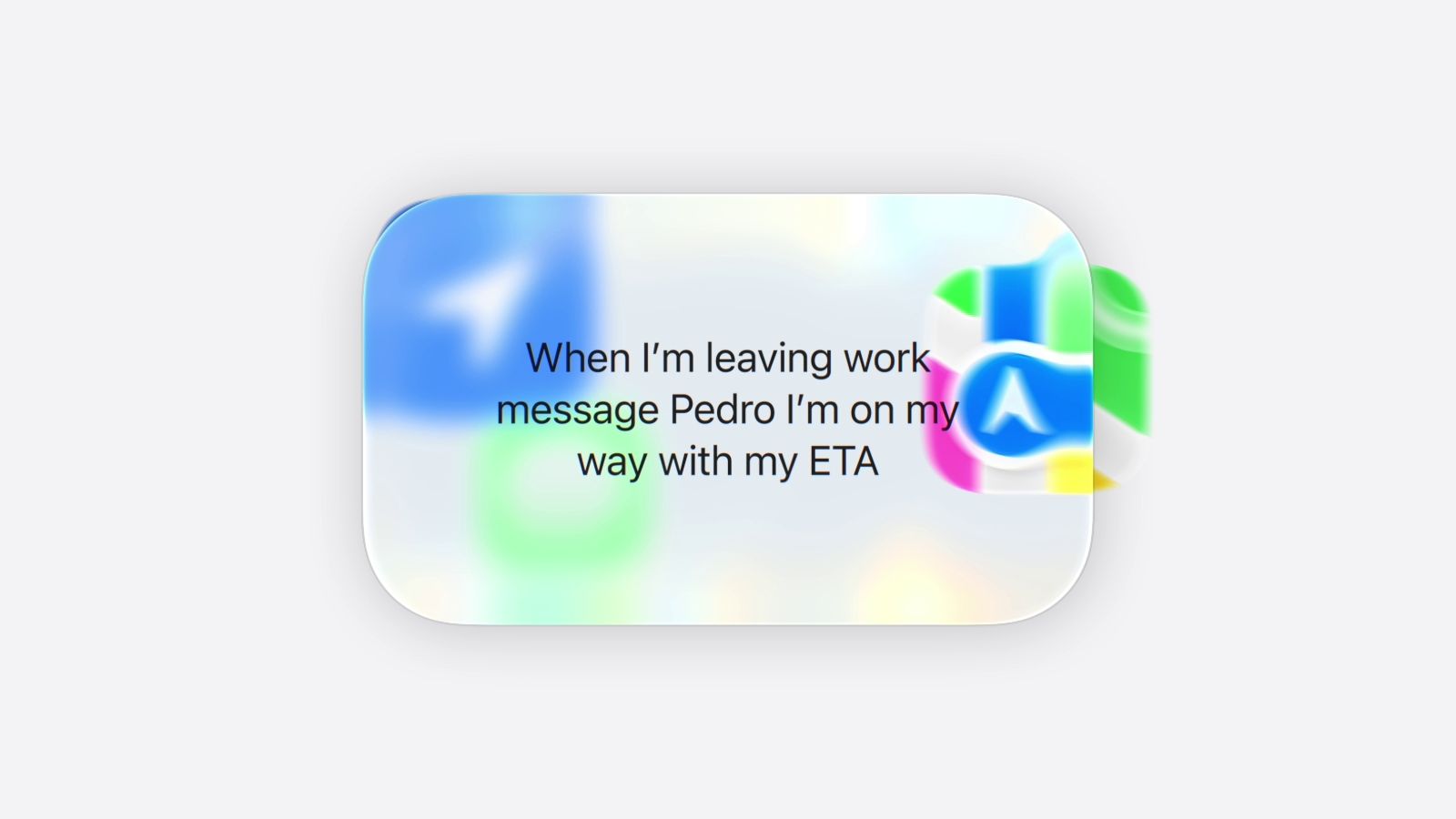
'Message Pedro my ETA when I leave work.' That single prompt turned into: location detection → Maps travel time calculation → Messages send. That's exactly what Apple showed at WWDC 2026.
The iPhone automation tool Apple built from the 2017 Workflow acquisition has finally opened its doors to non-power-users.
Why Shortcuts Has Always Been a Power-User Thing
More than 1.5 billion people carry an iPhone. But how many actually use Shortcuts? It's been 9 years since Apple acquired Workflow and baked Shortcuts into iOS — yet it's stayed firmly in power-user territory.
Here's why. Building even a simple automation meant hunting down individual "action" blocks, managing variables, and understanding how each app behaves. Something as basic as "text home when I leave work" required a location trigger, Maps integration, contact variable setup, and conditional branching.
Apple's own Home Software team lead, Cecilia Dantas, admitted it: "While super powerful, the process of creating these shortcuts can feel, well, complicated." That's an official statement.
Among power users, Shortcuts carries a reputation as "debugging hell" — when something breaks, there's no error message, just a silent stop. Tracing data through the workflow has been compared to "archaeology".
What iOS 27 AI Actually Changes
The new Shortcuts in iOS 27 greets you differently. Instead of a blank canvas, there's a "What do you want your shortcut to do?" prompt field. Type what you want in plain English and Apple Intelligence assembles the workflow in seconds.
The critical design decision: the generated shortcut opens directly in the standard editor — not buried behind a chat interface. Every action is visible and editable. Apple deliberately built this as an "AI onboarding layer," not a replacement for Shortcuts itself.
The other big shift is AI conditional logic. Old Shortcuts used fixed if-else rules. Now you can write things like "if this email looks like a sales pitch, archive it; if it looks urgent, flag it" and the AI evaluates the condition. It's lightweight agentic behavior built right in.
| Old Shortcuts | iOS 27 Shortcuts AI | |
|---|---|---|
| Starting point | Blank canvas + manual action search | Natural language input |
| Conditional logic | Fixed rules (if-else) | AI-evaluated branching |
| Editing | Direct block editing | Request changes in plain language |
| Third-party apps | Manual setup required | Auto-recognized via Actions API |
| Barrier to entry | Power users only | Anyone |
AI doesn't do everything, right?
Hands-on testing shows single-purpose tasks and location/time triggers work great. But text parsing, complex branching, and URL parameter handling still need manual review after AI generates a draft. Apple's official recommendation: "Review every action before running."
How to Start Right Now
iOS 27 releases officially in September, but the developer beta (June) and public beta (expected July) let you try it early. Start with proven prompt patterns for the best results.
- Join the beta
Developers: developer.apple.com. Everyone else: beta.apple.com for the public beta in July. - Learn the prompt structure
"When [trigger], use [specific app] to [result]." Naming the exact app is key — vague instructions lead to vague shortcuts.
Example: "Every morning at 7am, check the Weather app and notify me if I need an umbrella" - Start simple
Test single-app, single-purpose automations before tackling multi-app workflows. Reliability is much higher. - Always review before running
Open every generated action and check it. Real testing found cases where Low Power Mode was toggled the wrong way. - Edit by talking
If something is off, describe the change in the prompt field — "add podcast playback to this" works and appends to the existing shortcut.
5 prompts to try right now
① "When I leave work, calculate my ETA with Maps and text my family via Messages"
② "Every Monday morning, summarize my unread weekend emails and add to Notes"
③ "If rain is in tomorrow's forecast, remind me 30 min before my alarm to grab an umbrella"
④ "When a specific contact calls, pause my music and lower the volume"
⑤ "When I get home, turn on the lights and set AC to 77°F" (requires HomeKit devices)