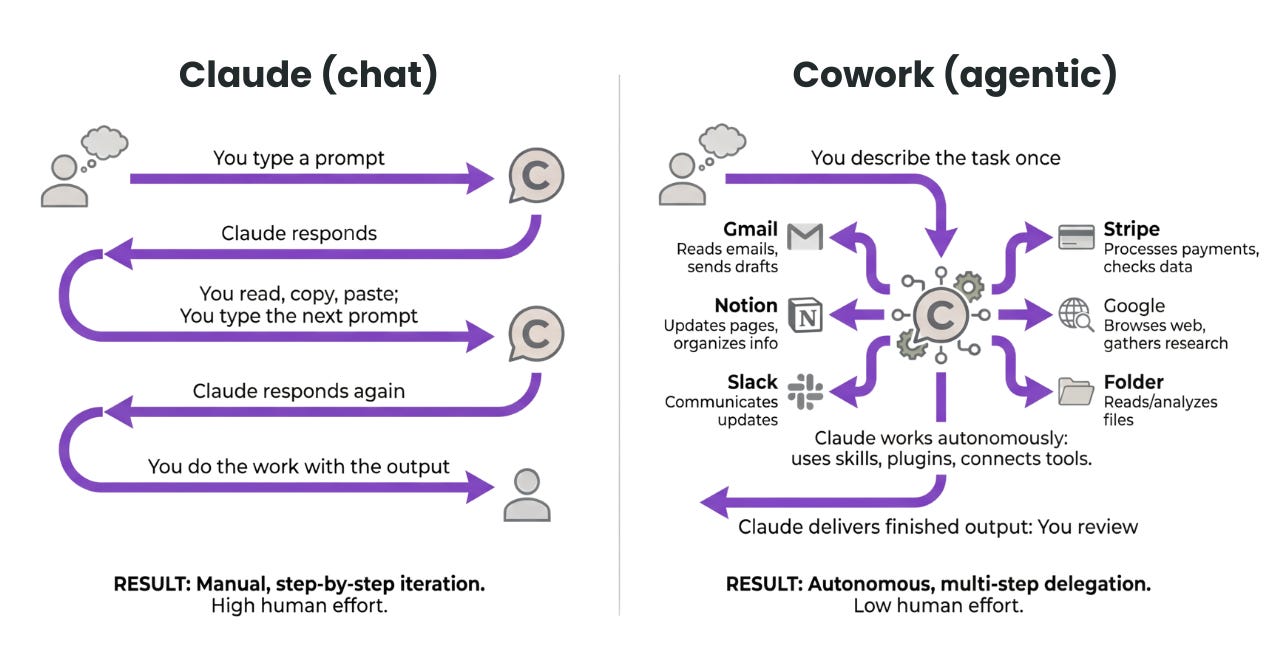
You hired 300 AI agents. None of them can log into your company ERP. That's the core limitation of cloud-based AI agents — no matter how capable they are, they can't access your accounts, you have to upload files to their servers, and they stop the moment you step away.
Moonshot AI's Kimi Work takes a fundamentally different approach. Instead of keeping agents in the cloud, it brings them to your machine. Your browser sessions stay yours, your files stay local, and tasks keep running while you sleep.
What cloud AI agents actually can't do
If you've tried using AI agents for real work, you know the frustration. "Handle this for me" almost always ends with you doing it yourself.
| Limitation | Cloud AI Agent | Kimi Work (Local) |
|---|---|---|
| Your account access | Impossible — no session sharing | WebBridge inherits your cookies and logins |
| Local file processing | Must upload files (security risk) | Reads mounted folders directly, no cloud transfer |
| Overnight / scheduled runs | Requires you to trigger manually | Cron engine + Keep Awake toggle |
| Python / code execution | Not possible or cloud sandbox only | Runs local Python/shell scripts directly |
With these four limitations in place, AI agents are glorified assistants at best. You're sitting there watching, approving every action one by one. Kimi Work changes the structure entirely — by bringing the agents to your machine.
Kimi Work's 4 building blocks
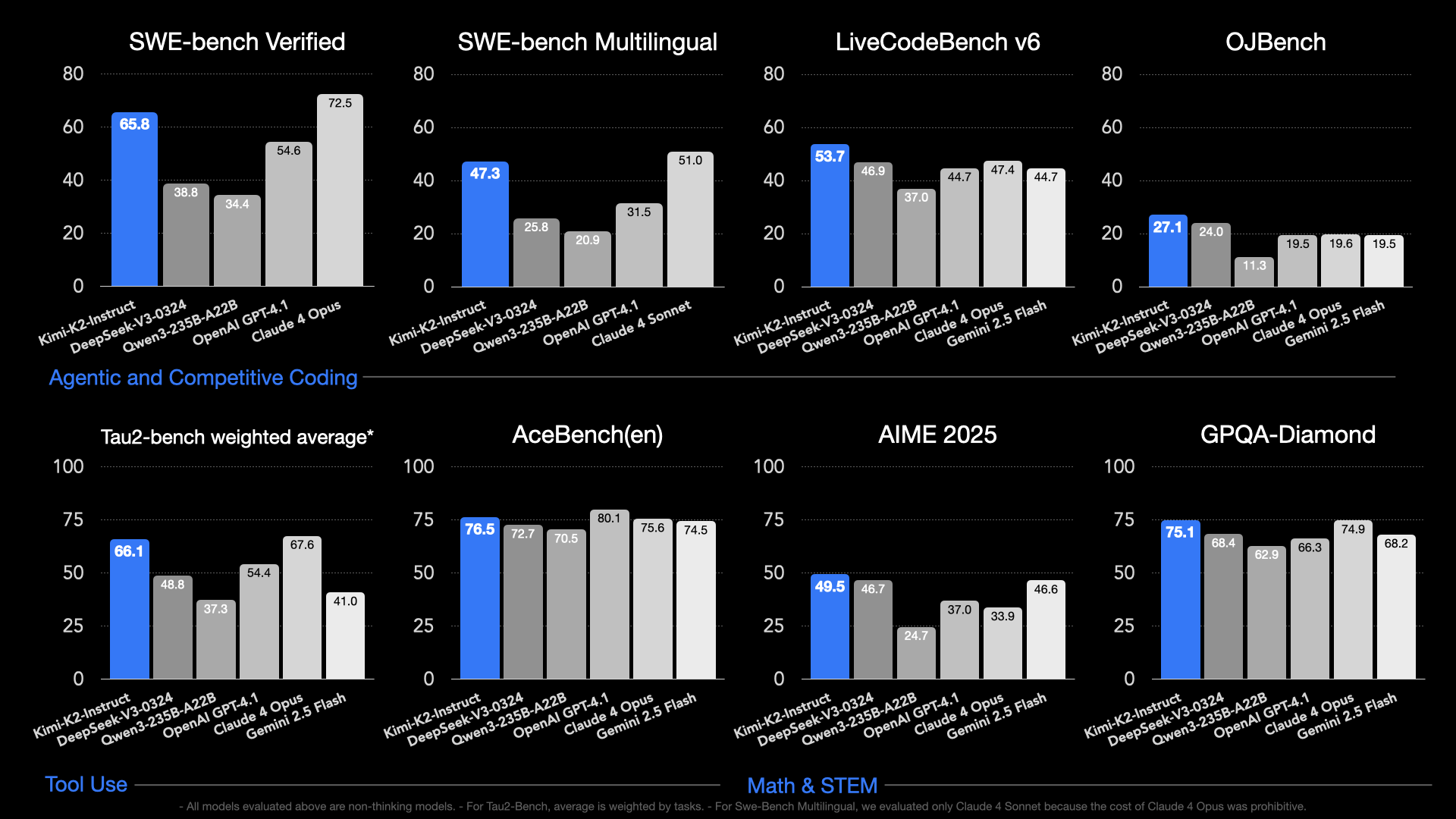
Kimi Work runs on Kimi K2.6. It's a Mixture-of-Experts architecture that activates 32B parameters per token from a 1T total, with a 256K token context window. It hits 80.2% on SWE-bench Verified — top-tier among publicly available agent models. A separate Instruct variant is optimized specifically for agentic tasks.
That model connects to four core modules.
① Agent Swarm
Breaks a large task into subtasks and runs up to 300 in parallel. For a research report, it simultaneously gathers sources, analyzes, summarizes, and formats — then a central agent synthesizes everything. Up to 4,000 coordinated steps.
② WebBridge
A browser extension that lets agents use your existing login sessions (cookies included). If you're logged into Gmail, the agent sends email as you. Your company dashboard, internal tools — all accessible without re-authentication.
③ Cron Scheduling Engine
Set daily, hourly, or conditional schedules. The "Keep Computer Awake" toggle keeps your laptop running overnight. Full pipeline: collect → analyze → generate report → send — automatically, while you sleep.
④ Local File & Code Access
Reads mounted folders and executes Python/shell scripts directly on your device. Files never leave your machine. Any file write or web action requires your explicit approval before executing.
Financial data is pre-integrated: A-shares (Shanghai/Shenzhen), Hong Kong stocks, and US equities — no separate API setup needed.
Where Kimi Work actually outperforms cloud AI
Three categories where local wins by default.
First, repetitive tasks that require login access. Daily CRM reports, Slack channel monitoring, extracting data from specific sites — cloud AI simply cannot touch these. WebBridge unlocks all of it.
Second, local file-based workflows. Reviewing dozens of contracts to build a comparison table, or running analysis on an internal database — these are workflows where uploading sensitive files to an external server is a non-starter. Kimi Work processes everything locally.
Third, overnight automation. "Before I get to the office tomorrow, scrape competitor pricing and put it in a spreadsheet" — this is actually doable now. Keep Awake runs the task while you sleep. The file is waiting in your folder in the morning.
Agents must pass through a user approval gate before any file write or web action.
— Kimi Work design principle
Autonomy with guardrails. The approval gate prevents agents from overwriting files or sending emails without your explicit sign-off.
How to get started
- Download the app
Go to kimi.com/work and grab the macOS (Apple Silicon) or Windows version. Intel Macs are not supported yet. - Install the WebBridge browser extension
Follow the in-app prompts to install WebBridge. Choose which sites to grant access to — start narrow and expand as trust builds. - Enter your first task
Describe the task in natural language. "Every day at 7am, pull data from site X and summarize it" — the more specific, the better the agent performs. - Review the approval gates
The agent pauses before any file write or form submission. Review every action early on — once you're confident, you can set specific action types to auto-approve. - Set up cron schedules
Add recurring tasks in the Cron Engine. Enable "Keep Computer Awake" for overnight runs. Your laptop wakes up, runs the job, and goes back to sleep.
Important: scope your permissions carefully
When installing WebBridge, limit which sites the agent can access. Choose only work-related sites — don't enable everything. Keep sensitive personal accounts (banking, healthcare) out of scope.
Go deeper
Kimi Work official download macOS Apple Silicon and Windows download, WebBridge installation guide kimi.com
Kimi K2 GitHub repository MoE architecture specs, full benchmarks, vLLM/SGLang local inference setup guide github.com
Kimi K2.6 HuggingFace model card 256K context window, multimodal support, full SWE-bench 80.2% benchmark breakdown huggingface.co
Kimi K2 Instruct model card Agent-task-optimized Instruct variant, detailed performance specs huggingface.co
MarkTechPost analysis Technical architecture breakdown and cloud vs. local agent comparison marktechpost.com