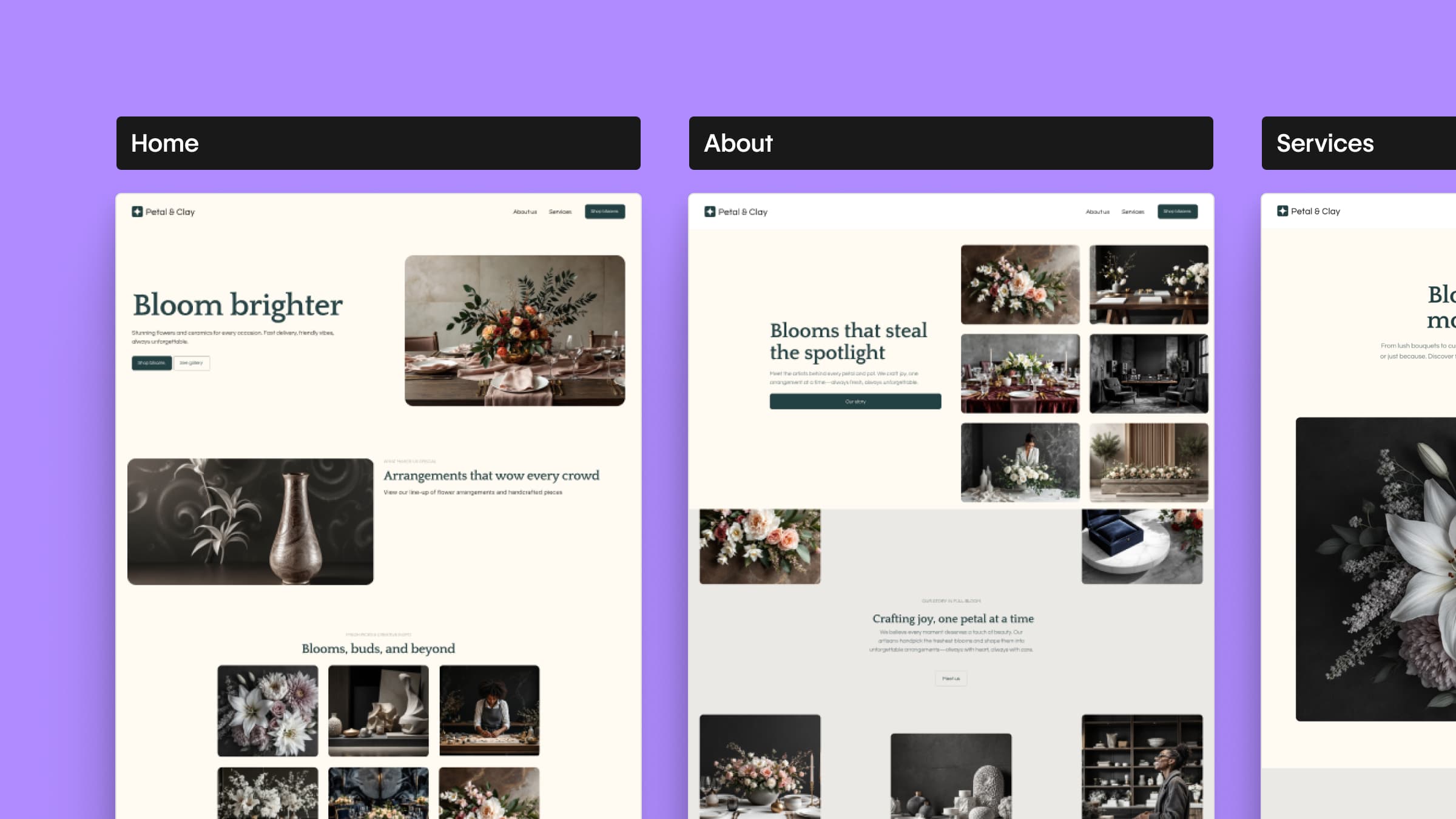
I told an AI "make me a sneaker brand site," and out came Home, About, Products, Blog, Contact — 5 pages with scroll animations baked in.
If you typed the same prompt into v0 or Lovable, the output would look different. Because the two tools are actually building different things.
What's actually new here?
Webflow shipped a fresh AI Site Builder on February 5, 2026. The first beta back in early 2025 was honestly a little flat — single-page output, static design, that was the whole show.
This update changes 4 things, and the headline is: "one prompt, a real site":
- Multi-page generation
Up to 5 pages of full site structure in the initial pass. Home, About, Products, Blog, Contact — a standard IA comes out as a single bundle. - Built-in animations
Scroll interactions and hover effects ship with the generated site, not bolted on later. Fine-tune the details in Webflow. - Redesigned generation flow
Previously theme → colors/fonts → page additions were separate steps. Now it's one continuous flow. - Enterprise access
Permissions and accessibility scaled up so larger teams can actually use it.
But here's the part worth lingering on. The tools in this category produce wildly different outputs, and that's the angle this post cares about.
Wait, aren't they all basically the same?
v0, Lovable, Bolt, Framer AI, Webflow — they all say "prompt to a site." But if you actually use them, the output has a different texture, and the fit for you changes with it.
The split is real. One side spits out code (v0, Lovable, Bolt). The other side spits out an "editable site" (Webflow, Framer). Why that matters comes next.
So what does v0 actually do differently?
The biggest fork in the road is "who keeps editing what the AI made".
| Code generators (v0, Lovable, Bolt) | System generators (Webflow, Framer) | |
|---|---|---|
| Output | React/Next.js code | A site editable in the builder |
| How you edit | IDE or chat-based code edits | Drag-and-drop on a visual canvas |
| Who maintains it | Developers | Designers and marketers |
| Version control | Direct GitHub sync | Built-in history |
| CMS / SEO | You wire it up yourself | Comes in the box |
v0 syncs straight to a GitHub repo and slots into existing React projects. Its strength is fitting into a developer workflow. Lovable plays in a similar lane while pitching "iterate on your creation with simple feedback" for non-devs too. Bolt goes further — full-stack apps with backend, auth, and database wired up.
Webflow's output is the opposite. It's a Webflow site, period. Whatever the AI generated, a designer keeps editing it in the same company's visual editor. CMS collections, the design system (color tokens, type scale, spacing), hosting — it all comes attached. The thing users on Product Hunt praise most is "pixel-perfect control over responsive design," and that control survives the AI generation step.
Framer AI sits in the same camp. Wireframer for layout, AI Translate for languages, output stays editable in the Framer canvas. The difference is Webflow leans into CMS and complex site structures while Framer is sharper for portfolios and lighter landing pages.
One more clever move from Webflow. Alongside AI Site Builder, they shipped AI Code Components separately. Inside a site, you can say "make me a pricing calculator" or "add a search filter" in plain language and get an on-brand, interactive piece. Layer on top a Claude/Cursor MCP connector that lets you do things like "audit and rewrite SEO meta across the whole site" from your IDE. AI sprinkled across the workflow, not crammed into one entry point.
How to actually start using it
Webflow AI Site Builder is out of beta and available to all customers except those on the Enterprise Workspace plan. The usual pattern is to build it free on Starter and upgrade once you need hosting.
- Click "New Site" in the Webflow dashboard
AI Site Builder shows up on the first screen. If you already have a Webflow account, you start in that same workspace. - Write the prompt long
"A sneaker brand site" gets you mid output. "A Korea-targeted running shoe brand, minimal tone, needs About, Products, Blog, Contact pages" gets you a much better one. Tone, audience, page structure — minimum three. - Check the design system first
After it generates, scan the color tokens, type scale, and spacing for consistency. If that layer is shaky, every page edit later makes it worse. - Keep the animations on at first
Don't kill them immediately. It's faster to see what the AI shipped and trim the excess than to add motion later. - CMS and SEO come next
If a Blog page was generated, connect a CMS collection. For SEO, the Claude MCP connector can audit and rewrite metadata across the whole site in one pass.
Worth knowing
You can prompt in non-English, but the generated copy tends to come back in English. Plan for a copy rewrite. And Product Hunt reviews regularly note Webflow's "learning curve is steep for beginners" — the AI Site Builder lowers that on-ramp, but real customization still asks you to learn the Webflow editor.
Resources to go deeper
Webflow's February 2026 update post The official rundown on multi-page, animations, and the new generation flow webflow.com
AI Code Components guide Build pricing calculators, quizzes, and search filters from natural language webflow.com
Webflow × Claude MCP Five things you can automate with the Claude connector — SEO audits, CMS backfills, design consistency cleanup webflow.com
v0 by Vercel The flagship of the code-generator camp — GitHub sync and live deploy v0.app
Lovable "Describe → working prototype → deploy" — the three-step code generation builder lovable.dev
Framer AI Wireframer, Workshop, and AI Translate stitched into one canvas — Webflow's neighbor in the system-generator camp framer.com