Loading...

AI動画編集ツール · HyperFrames Studio

ポッドキャスト制作者が25分の回の編集をコーディングAIに任せ、直したい箇所を画面に描き込むか書き込むだけで、1日でイントロと字幕入りの編集版ができました

HyperFrames Studioにウェブサイトのアドレスや撮りためた映像を入れると、接続したClaude CodeやCodexが動画を作ってタイムラインに載せてくれます。気に入らない場面は、その上にペンで描き込むかコメントを付ければ、AIがその箇所を直してくれます。アプリは無料です。実際の仕事で使った事例を集めました。

2026年10月19日·事例 2件

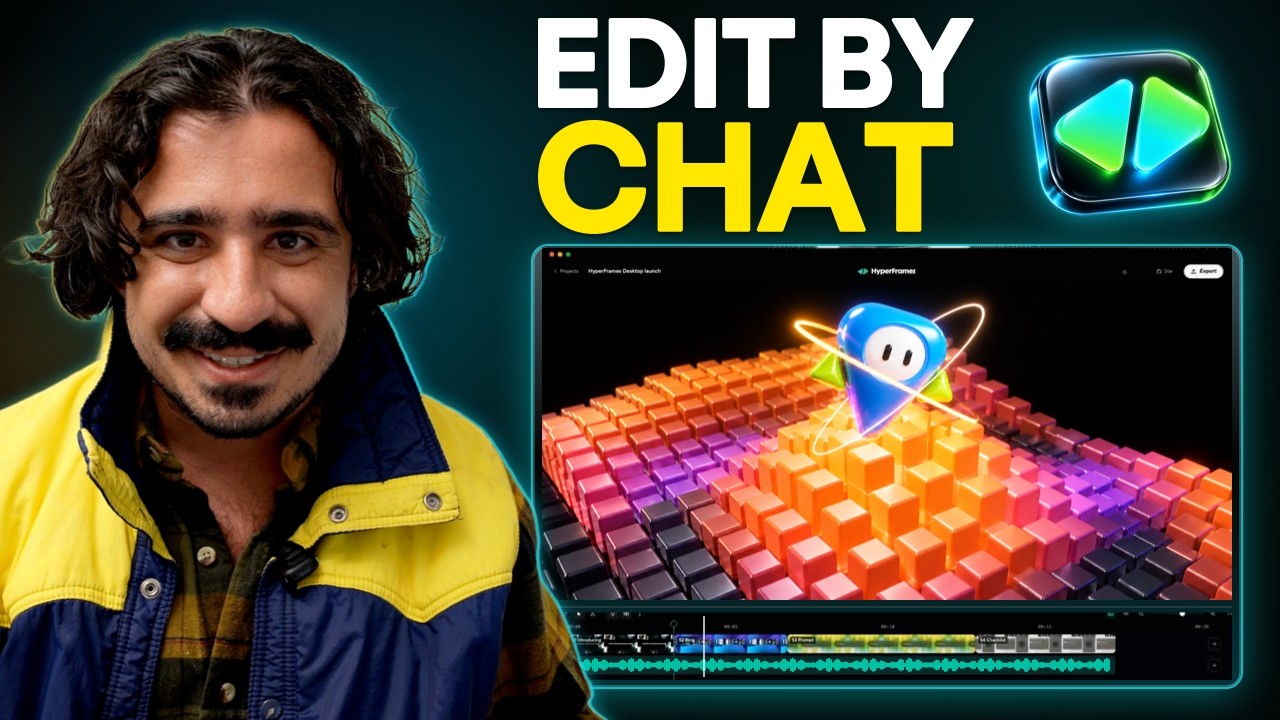
TenexのAnthony Dupont-CinkoがHyperFrames Studioで作った動画と、使ってみた過程をまとめた15分29秒のレビュー動画
冒頭はCinkoがStudioで作った作品のダイジェストです。出典:Tenex YouTube

HeyGenが10月5日にHyperFrames Studioを公開すると、公式Xアカウントの発表投稿は167万回以上表示されました。 その4日後には、PremiereもFinal Cutも一度も開かずに、24時間以内に25分のポッドキャスト1回分を編集し、Excelファイルを動画に変えたという投稿が出ました。

投稿したのは、AI導入コンサルティング会社Tenexで自社のポッドキャスト「Talk Nerdy」やブログ、YouTubeのコンテンツを作っているAnthony Dupont-Cinkoです。Cinkoはこう書いています。"Now there's a timeline, a chat box, and a pen: circle what's off, say what you want, and it fixes it. I don't think I could ever go back to writing out timestamps."(今はタイムラインとチャット欄とペンがあります。ずれている所を丸で囲んで、どうしたいかを言えば直してくれます。直したい場面の時刻(タイムスタンプ)をいちいち文字でAIに伝えていた頃には、もう戻れないと思います。)

動画そのものは、自分のパソコンに接続したClaude CodeやCodexがコード(HTML)で作ります。Studioはその動画をタイムラインに表示し、人が文字で書いたり、画面を指したり、描き込んだり、コメントを付けたりした箇所をAIに渡して直させます。
Reference 01AI導入コンサルティング会社Tenexでポッドキャスト「Talk Nerdy」を制作するAnthony Dupont-Cinko · X・Tenexブログ

25分のポッドキャスト1回分をイントロ・字幕・資料映像まで入れて編集し、Excelファイルはスライドショー動画に

Cinkoはポッドキャスト「Talk Nerdy」の1回分を丸ごと入れ、昔の資料映像と効果音を使ったイントロを作るよう頼みました。こうして25分の回全体が、イントロ、字幕、資料映像の入った編集版になりました。 最初のプロンプト1つで、画面構成、グラフィック、カットがCinkoの思い描く完成形の約85%まで仕上がり、さらに3つのプロンプトで不自然なつなぎを直しました。ただ同じ編集で、AIは最初、資料映像を入れるべき箇所に記事の見出しだけを映した画面を置いたため、Cinkoはウェブで実際の資料映像を探して入れるよう追加で指示する必要がありました。

修正のあいだにCinkoがしたことは、これだけです。"I was just drawing on the screen, typing in a text box"(画面に描いて、テキストボックスに打ち込んでいただけです)。 画面に描き込んで直す様子は、冒頭のレビュー動画の4:30のチャプター('Draw on a frame to make edits')で見られます。

同じ日のうちに、Excelファイルをスライドショー動画に、ブログ記事をSNS向けのインフォグラフィックに、ニュースレターのページを広告に、ウェビナーの紹介ページを宣伝動画に変えました。スマートフォンで30秒間話す姿を撮って入れると、字幕、グラフィック、ズームの付いた動画が出てきて、プロンプトをもう1つ入れると使える仕上がりになりました。

CinkoはHeyGenの社員ではありません。ただしTenexは企業のAI導入を支援するコンサルティング会社なので、Cinkoのブログ記事や動画は自社の宣伝も兼ねています。

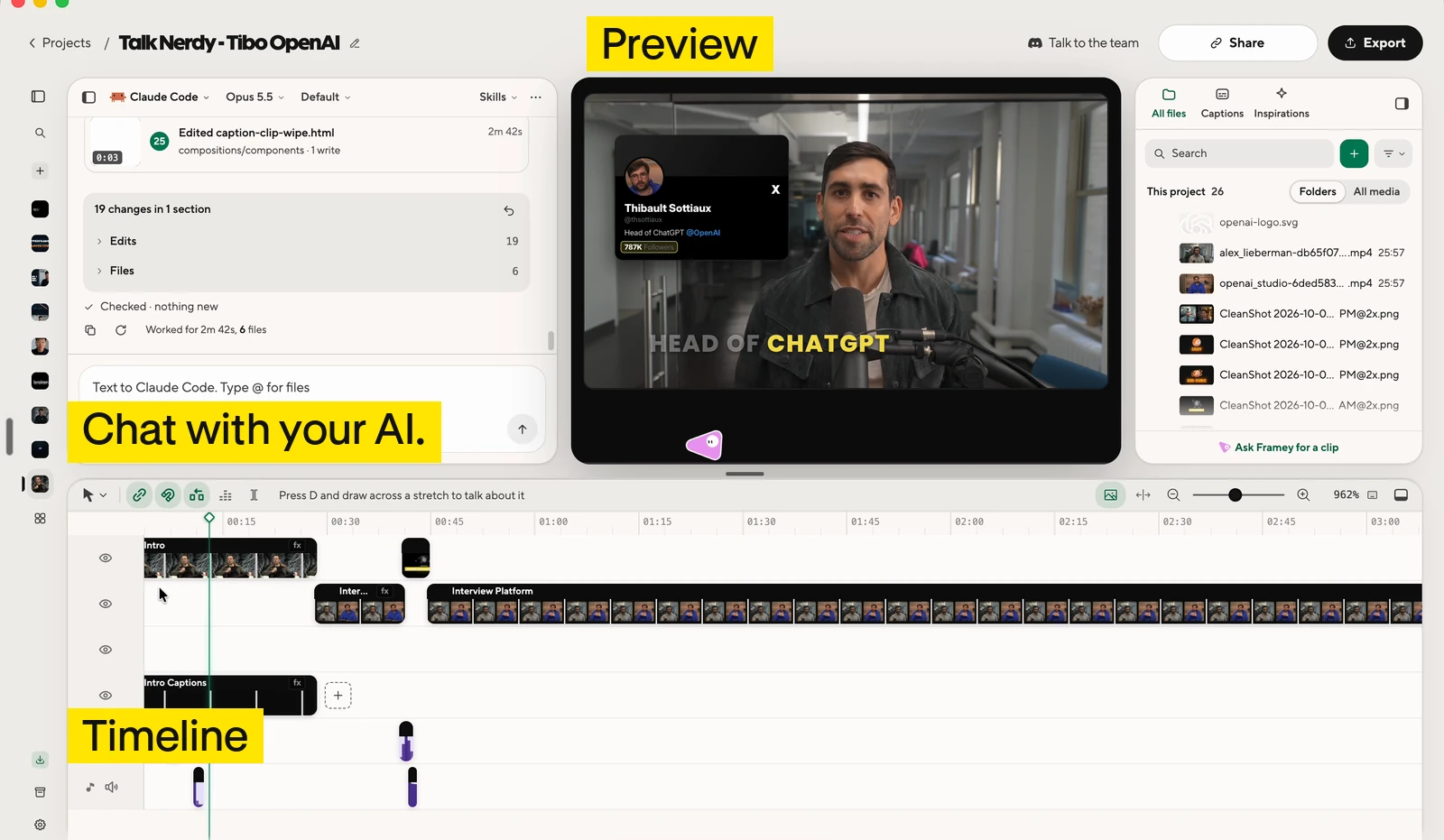
HyperFrames Studioの編集画面。動画プレビュー、タイムライン、AIと対話するチャット欄
Studioの編集画面です。プレビュー、タイムライン、チャット欄が1つの画面に収まっています。出典:Tenexブログ
ポッドキャスト1回分を編集するときに貼り付ける依頼文 · Cinkoが公開したプロンプトパックの15番

Edit [your podcast recording filename] into a [target length]-minute [16:9 widescreen or 9:16 vertical] video for [your audience]. The source is about [source length] minutes. Focus on [main topic or purpose]. Keep each speaker's meaning, caveats, and natural delivery. Do not fabricate speech or use a cut that changes a claim. Keep the speakers visible for most of the episode. Preserve their names and roles: [names and roles]. First transcribe the full recording, or use the attached timed transcript. Check important names and numbers. Propose the sections to keep and cut, with source timestamps. Wait for my OK before changing the spoken edit. After approval: - Remove repeated points, false starts, and distracting dead time. Keep pauses and reactions that affect the meaning or mood. Do not shorten every breath. - Make clean audio edits that do not cut through words. Avoid unnecessary transitions between ordinary cuts. - Add titles at section changes and quotes or diagrams where they explain a point. Use [your brand colors] and [your font]. Keep text away from faces. - Use real archival footage only where it clarifies a specific point. Start with my supplied clips and sources. If search is available, propose usable real footage with its source and usage terms before adding it. - Do not substitute generated footage for requested archival footage. If footage is unavailable, keep the speaker visible and list the gap. - Keep speech clear. Add music only if I supplied it or approved the track. Save a cut list and an asset list in NOTES.md, including source timestamps, footage URLs, known usage terms, and where each asset appears. Work in sections if the episode is too long for one pass. Show me the preview. After my approval, run the project checks and export an MP4.

Cinkoが試した依頼文をまとめ、GitHubで無料公開した16本のうちの1本です。パックの説明どおり公式ドキュメントと照合されていますが、この文面のまま動画を作り直して検証してはいません。角括弧の部分を自分の録音に合わせて書き換えてください。資料映像の箇所を実際の映像に差し替える追加の依頼文も、同じファイルにあります。

Reference 02AI動画編集の有料ワークショップを開くクリエイターMatt Farmer · YouTube

ワークショップの紹介ページを1つ入れただけで宣伝動画が丸ごと1本完成し、その後も自分で手直しできました

Matt Farmerは、10月13〜14日に開いた自身のワークショップ「Vibe Editing Workshop」の紹介ページをStudioに入れました。Studioに接続したAIが作った宣伝動画を、ワークショップの6日前にショート動画として投稿し、こう書いています。"I gave it my workshop landing page and it made the whole promo, and you can still go in and edit it."(ワークショップの紹介ページを渡したら宣伝動画を丸ごと作ってくれて、そのあとも自分で開いて編集できます。)

Matt FarmerがHyperFrames Studioで作ったワークショップの宣伝動画を紹介するショート動画

みんなの反応

よかったという声

  • “HyperFrames Studio is the easiest on-ramp to AI video editing I've ever seen. It's like what Canva did for democratizing design.”

    HyperFrames Studioは、私が見てきた中でいちばん手軽にAI動画編集を始められる入り口です。Canvaがデザインを誰でもできるものにしたのと似ています。

    Anthony Dupont-Cinko · Xx.com
  • “Honestly, they rival CapCut.”

    正直、CapCutに匹敵します。

    Studioが付けてくれる字幕についての言葉です。

    Anthony Dupont-Cinko · Tenexブログtenex.co
  • “More than one AI. If you pay for both Claude and Codex, you're not stuck when one runs out of usage.”

    複数のAIを使えます。ClaudeとCodexの両方に課金しておけば、片方の使用量が尽きても手が止まりません。

    Anthony Dupont-Cinko · Tenexブログtenex.co
  • “The app is free and uses your existing eligible Claude or ChatGPT plan.”

    アプリは無料で、すでに契約している対象のClaudeまたはChatGPTのプランで動きます。

    CodexはChatGPTのプランで使うAIです。

    Matt Farmer · YouTubeyoutube.com
  • “Premiere Pro and Frame.io better step up their game!”

    Premiere ProとFrame.ioも、うかうかしていられませんね!

    Frame.ioは動画のコラボレーションツールです。

    Travis Miragliotta · LinkedIn(Cinkoの投稿へのコメント)linkedin.com

物足りなかったという声

  • “The default doesn't look good. You need a lot of references and detail to get something you'd want to post.”

    デフォルトの出来は見栄えがよくありません。投稿したいと思えるものにするには、参考資料と細かい指示がたくさん必要です。

    Anthony Dupont-Cinko · Tenexブログtenex.co
  • “It won't help with the idea. It's built to execute, not to brainstorm.”

    アイデア出しは手伝ってくれません。決めたことを形にするためのツールで、ブレインストーミング向けではありません。

    Anthony Dupont-Cinko · Tenexブログtenex.co
  • “That version came out better. My conclusion is that the terminal still has the higher ceiling; Studio is the easier way in.”

    そちらのほうが出来がよかったです。到達できる上限はまだターミナルのほうが高く、Studioはより入りやすい入り口だというのが私の結論です。

    同じポケモン図鑑(Pokédex)アプリの宣伝動画を、Studioを使わずにターミナルのClaude Code(Opus 5.5)と、動画をコードで作るツールRemotionでも作って比べたあとの言葉です。

    Anthony Dupont-Cinko · Tenexブログtenex.co
  • “Wait if you already live in Premiere or Final Cut. It's nowhere near as smooth yet.”

    普段からPremiereやFinal Cutで編集しているなら、待ったほうがいいです。まだまったくそこまでスムーズではありません。

    Anthony Dupont-Cinko · Tenexブログtenex.co
  • “First they asked for all kinds of permissions and said they would record my screen (?!). I ran a test project and it clogged my hard drive by copying everything instead of referencing the originals.”

    まずあらゆる権限を求められ、画面を録画すると言われました(?!)。テストプロジェクトを1つ動かしたら、元のファイルを参照せずに全部コピーしたせいで、ハードディスクがいっぱいになりました。

    Erik Lindgren · LinkedIn(Cinkoの投稿へのコメント)linkedin.com

始め方

Studioアプリ(macOS・Linux)をダウンロードしてHeyGenアカウントでログインし、Claude CodeかCodexを接続したら、アプリのチャット欄に下の依頼文を貼り付けるだけです。アプリは無料で、AIのサブスクリプション料金は別にかかります。

  1. はじめの依頼文

    この記事のように動画を作って直したいです。 https://www.working-ref.com/ja/library/hyperframes-studio-2026-10 私の素材[例:ポッドキャストの録音、Excelファイル、ウェブサイトのアドレス]で作れそうな動画を3つ提案してください。1つ選んだら、作り始める前に、私のブランド素材、参考にする動画、やってほしくないことを先に聞いてください。直す箇所は私が画面上で示します。選べるものがなければ、最初の事例のように、私が入れた録音からイントロと字幕入りの編集版を作ってください。

    hyperframes.dev/studio ↗

このリファレンスを共有

毎週1回・無料

このリファレンスは役に立ちましたか?

毎週あふれるAIニュースから
BEST 3つだけ、受信箱へ

Work Smarter with AI

420人が毎週受け取っています

購読完了 次号から受信箱でお会いしましょう。