Loading...

AI 영상 편집기 · HyperFrames Studio

팟캐스트 제작자가 25분짜리 회차 편집을 코딩 AI에게 맡기고 고칠 곳만 화면에 그리거나 적자, 하루 만에 인트로·자막이 들어간 편집본이 나왔어요

HyperFrames Studio에 웹사이트 주소나 찍어 둔 영상을 넣으면, 연결해 둔 Claude Code나 Codex가 영상을 만들어 타임라인에 올려 줘요. 마음에 안 드는 장면은 그 위에 펜으로 그리거나 코멘트를 달면 AI가 그 자리를 고쳐 줘요. 앱은 무료예요. 실제 일에 써 본 사례를 모아 봤어요.

2026.10.19·사례 2

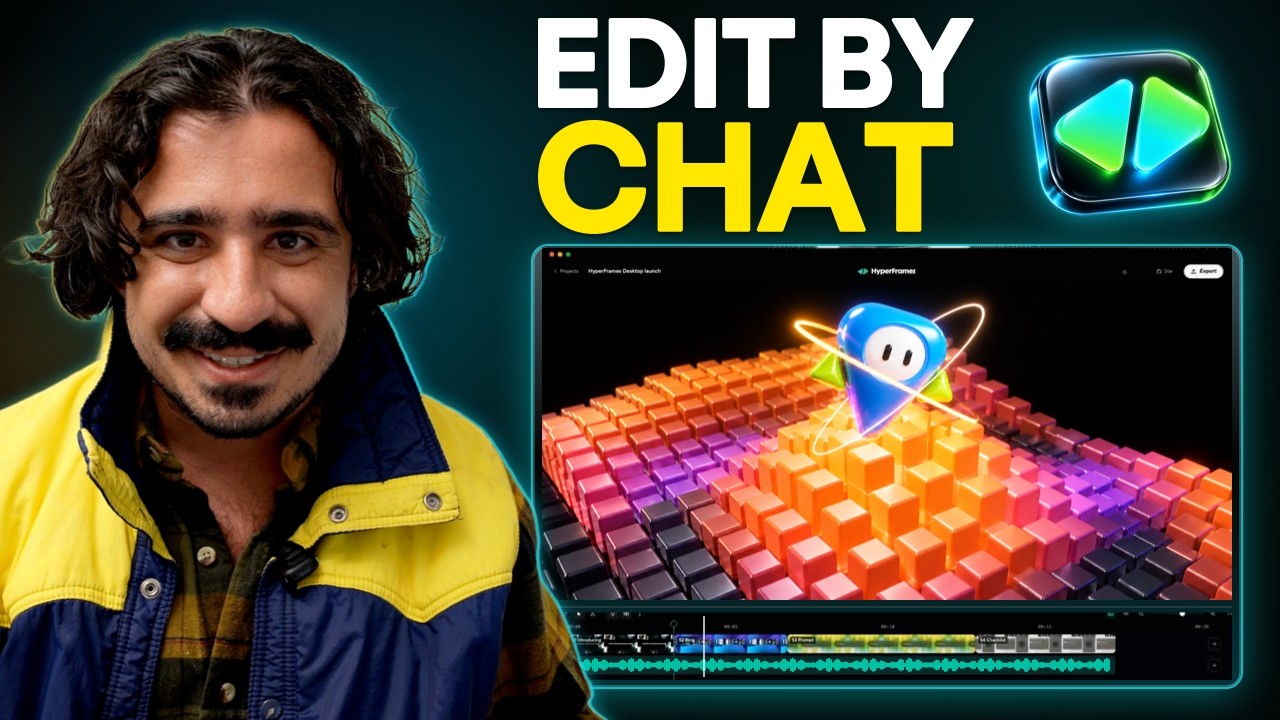
Tenex의 Anthony Dupont-Cinko가 HyperFrames Studio로 만든 영상들과 써 본 과정을 담은 15분 29초 사용기 영상
맨 앞은 Cinko가 Studio로 만든 결과 모음이에요. 출처: Tenex YouTube

HeyGen이 10월 5일 HyperFrames Studio를 내놓자, 공식 X 계정의 출시 글은 조회 167만 회를 넘겼어요. 나흘 뒤에는 Premiere나 Final Cut을 한 번도 열지 않고 24시간 안에 25분짜리 팟캐스트 한 회를 편집하고, 엑셀 파일을 영상으로 바꿨다는 글이 올라왔어요.

그 글을 쓴 사람은 AI 도입 컨설팅사 Tenex에서 회사 팟캐스트「Talk Nerdy」와 블로그·유튜브 콘텐츠를 만드는 Anthony Dupont-Cinko예요. 그는 이렇게 적었어요. "Now there's a timeline, a chat box, and a pen: circle what's off, say what you want, and it fixes it. I don't think I could ever go back to writing out timestamps."(이제 타임라인과 채팅창과 펜이 있어요. 어긋난 곳에 동그라미를 치고 원하는 걸 말하면 고쳐 줘요. 고칠 장면의 시각(타임스탬프)을 AI에게 일일이 글로 적어 주던 때로는 못 돌아갈 것 같아요.)

영상은 내 컴퓨터에 연결한 Claude Code나 Codex가 코드(HTML)로 만들어요. Studio는 그 영상을 타임라인에 띄우고, 사람이 글로 적거나 화면을 가리키거나 그리거나 코멘트를 단 곳을 AI에게 넘겨 고치게 해요.
Reference 01AI 도입 컨설팅사 Tenex에서 팟캐스트「Talk Nerdy」를 만드는 Anthony Dupont-Cinko · X·Tenex 블로그

25분짜리 팟캐스트 한 회를 인트로·자막·자료 화면까지 넣어 편집하고, 엑셀 파일을 슬라이드쇼 영상으로 바꿨어요

Cinko는 팟캐스트「Talk Nerdy」한 회를 통째로 넣고, 옛 자료 영상과 효과음이 들어간 인트로를 만들어 달라고 했어요. 그렇게 25분짜리 회차 전체가 인트로와 자막, 자료 화면이 들어간 편집본이 됐어요. 첫 프롬프트 하나로 화면 구성과 그래픽, 컷이 Cinko가 생각한 완성본의 약 85% 수준까지 나왔고, 프롬프트 셋을 더 넣어 어색한 전환을 고쳤어요. 같은 편집에서 AI가 처음에 자료 영상 자리에 기사 제목만 띄운 화면을 넣어서 Cinko는 웹에서 실제 자료 영상을 찾아 넣으라고 더 요구해야 했어요.

고치는 동안 Cinko가 한 일은 이랬어요. "I was just drawing on the screen, typing in a text box"(화면에 그리고, 글상자에 적기만 했어요). 화면에 그려서 고치는 장면은 맨 위 사용기 영상의 4:30 장('Draw on a frame to make edits')에 나와요.

같은 하루 동안 엑셀 파일을 슬라이드쇼 영상으로, 블로그 글을 소셜 인포그래픽으로, 뉴스레터 페이지를 광고로, 웨비나 소개 페이지를 홍보 영상으로 바꿨어요. 휴대폰으로 30초 동안 말하는 모습을 찍어 넣었을 때는 자막과 그래픽, 화면 확대가 붙어 나왔고, 프롬프트 하나를 더 넣자 쓸 만한 영상이 됐어요.

Cinko는 HeyGen 직원이 아니에요. 다만 Tenex는 기업에 AI 도입을 컨설팅해 주는 회사라, Cinko의 블로그 글과 영상은 자기 회사를 알리는 글이기도 해요.

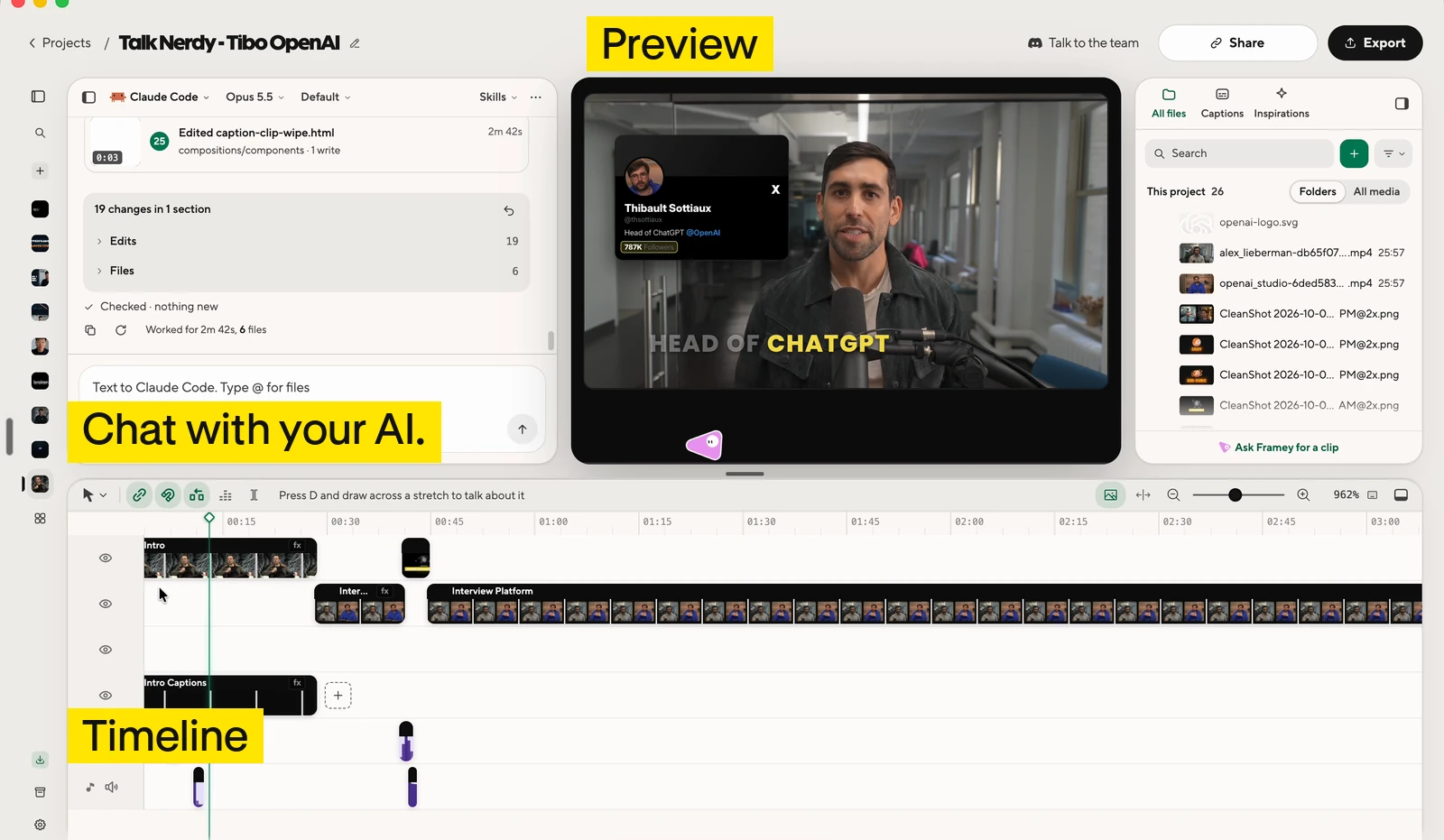
HyperFrames Studio 편집 화면. 영상 미리보기, 타임라인, AI와 대화하는 채팅창
Studio 편집 화면이에요. 미리보기와 타임라인, 채팅창이 한 화면에 있어요. 출처: Tenex 블로그
팟캐스트 한 회를 편집할 때 붙여 넣는 요청 · Cinko가 공개한 프롬프트 팩 15번

Edit [your podcast recording filename] into a [target length]-minute [16:9 widescreen or 9:16 vertical] video for [your audience]. The source is about [source length] minutes. Focus on [main topic or purpose]. Keep each speaker's meaning, caveats, and natural delivery. Do not fabricate speech or use a cut that changes a claim. Keep the speakers visible for most of the episode. Preserve their names and roles: [names and roles]. First transcribe the full recording, or use the attached timed transcript. Check important names and numbers. Propose the sections to keep and cut, with source timestamps. Wait for my OK before changing the spoken edit. After approval: - Remove repeated points, false starts, and distracting dead time. Keep pauses and reactions that affect the meaning or mood. Do not shorten every breath. - Make clean audio edits that do not cut through words. Avoid unnecessary transitions between ordinary cuts. - Add titles at section changes and quotes or diagrams where they explain a point. Use [your brand colors] and [your font]. Keep text away from faces. - Use real archival footage only where it clarifies a specific point. Start with my supplied clips and sources. If search is available, propose usable real footage with its source and usage terms before adding it. - Do not substitute generated footage for requested archival footage. If footage is unavailable, keep the speaker visible and list the gap. - Keep speech clear. Add music only if I supplied it or approved the track. Save a cut list and an asset list in NOTES.md, including source timestamps, footage URLs, known usage terms, and where each asset appears. Work in sections if the episode is too long for one pass. Show me the preview. After my approval, run the project checks and export an MP4.

Cinko가 써 본 요청을 정리해 GitHub에 무료로 올린 16개 가운데 하나예요. 팩 설명대로 공식 문서와 대조했지만, 이 문구 그대로 영상을 다시 뽑아 시험하지는 않았어요. 대괄호 칸을 내 녹음에 맞게 바꿔 넣어요. 자료 화면을 실제 영상으로 바꾸는 후속 요청도 같은 파일에 있어요.

Reference 02AI 영상 편집 유료 워크숍을 여는 크리에이터 Matt Farmer · YouTube

워크숍 소개 페이지 하나를 넣자 홍보 영상 한 편이 통째로 나왔고, 그 뒤로도 직접 고칠 수 있었어요

Matt Farmer는 10월 13~14일에 연 자기 워크숍 'Vibe Editing Workshop'의 소개 페이지를 Studio에 넣었어요. Studio에 연결한 AI가 만들어 준 홍보 영상을 담아 워크숍을 엿새 앞두고 쇼츠로 올리며 이렇게 적었어요. "I gave it my workshop landing page and it made the whole promo, and you can still go in and edit it."(워크숍 소개 페이지를 줬더니 홍보 영상 전체를 만들어 줬고, 그 뒤에도 직접 들어가서 고칠 수 있어요.)

Matt Farmer가 HyperFrames Studio로 만든 워크숍 홍보 영상을 소개하는 쇼츠

사람들의 반응

좋았다는 반응

  • “HyperFrames Studio is the easiest on-ramp to AI video editing I've ever seen. It's like what Canva did for democratizing design.”

    HyperFrames Studio는 제가 본 AI 영상 편집 가운데 가장 쉽게 시작할 수 있는 도구예요. Canva가 디자인을 누구나 하게 만든 것과 비슷해요.

    Anthony Dupont-Cinko · Xx.com
  • “Honestly, they rival CapCut.”

    솔직히 CapCut과 견줄 만해요.

    Studio가 넣어 주는 자막을 두고 한 말이에요.

    Anthony Dupont-Cinko · Tenex 블로그tenex.co
  • “More than one AI. If you pay for both Claude and Codex, you're not stuck when one runs out of usage.”

    AI를 둘 이상 쓸 수 있어요. Claude와 Codex를 둘 다 결제해 두면, 한쪽 사용량이 떨어져도 막히지 않아요.

    Anthony Dupont-Cinko · Tenex 블로그tenex.co
  • “The app is free and uses your existing eligible Claude or ChatGPT plan.”

    앱은 무료이고, 이미 쓰고 있는 Claude나 ChatGPT 요금제로 돌아가요.

    Codex는 ChatGPT 요금제로 쓰는 AI예요.

    Matt Farmer · YouTubeyoutube.com
  • “Premiere Pro and Frame.io better step up their game!”

    Premiere Pro와 Frame.io는 이제 분발해야겠네요!

    Frame.io는 영상 협업 도구예요.

    Travis Miragliotta · LinkedIn(Cinko 글 댓글)linkedin.com

아쉬웠다는 반응

  • “The default doesn't look good. You need a lot of references and detail to get something you'd want to post.”

    기본 결과는 보기 좋지 않아요. 올리고 싶은 영상을 얻으려면 참고 자료와 자세한 설명이 많이 필요해요.

    Anthony Dupont-Cinko · Tenex 블로그tenex.co
  • “It won't help with the idea. It's built to execute, not to brainstorm.”

    아이디어는 도와주지 않아요. 정한 것을 만드는 도구이지, 같이 기획하는 도구가 아니에요.

    Anthony Dupont-Cinko · Tenex 블로그tenex.co
  • “That version came out better. My conclusion is that the terminal still has the higher ceiling; Studio is the easier way in.”

    그쪽이 더 잘 나왔어요. 결과의 상한은 아직 터미널이 더 높고, Studio는 더 쉽게 들어오는 길이라고 봐요.

    같은 포켓몬 도감(Pokédex) 앱 홍보 영상을 Studio 없이 터미널의 Claude Code(Opus 5.5)와 영상 코드 도구 Remotion으로도 만들어 견준 뒤에 한 말이에요.

    Anthony Dupont-Cinko · Tenex 블로그tenex.co
  • “Wait if you already live in Premiere or Final Cut. It's nowhere near as smooth yet.”

    이미 Premiere나 Final Cut으로 편집하고 있다면 기다리세요. 아직 그만큼 매끄럽지 않아요.

    Anthony Dupont-Cinko · Tenex 블로그tenex.co
  • “First they asked for all kinds of permissions and said they would record my screen (?!). I ran a test project and it clogged my hard drive by copying everything instead of referencing the originals.”

    처음부터 온갖 권한을 요구하고 제 화면을 녹화하겠다고 했어요(?!). 시험 프로젝트 하나를 돌렸더니 원본을 가리키지 않고 전부 복사해서 하드 디스크가 꽉 찼어요.

    Erik Lindgren · LinkedIn(Cinko 글 댓글)linkedin.com

시작하는 법

Studio 앱(macOS·Linux)을 받아 HeyGen 계정으로 로그인하고 Claude Code나 Codex를 연결한 뒤, 앱 대화창에 아래 요청을 붙여 넣으면 돼요. 앱은 무료이고, AI 구독료는 따로 들어요.

  1. 시작 요청

    이 글처럼 영상을 만들고 고치고 싶어. https://www.working-ref.com/library/hyperframes-studio-2026-10 내 자료 [예: 팟캐스트 녹음, 엑셀 파일, 웹사이트 주소]로 만들 만한 영상 세 가지를 제안해 줘. 하나 고르면 만들기 전에 내 브랜드 자료, 참고할 영상, 하지 말 것을 먼저 물어봐 줘. 고칠 곳은 내가 화면에 표시할게. 고를 게 없으면 첫 사례처럼 내가 넣은 녹음으로 인트로와 자막이 들어간 편집본부터 만들어.

    hyperframes.dev/studio ↗

이 레퍼런스 공유하기

매주 1회 · 무료

이 레퍼런스가 도움이 되셨나요?

매주 쏟아지는 AI 소식 중 BEST
딱 3개만, 메일함에 꽂아 드릴게요

Work Smarter with AI

420명이 매주 받아보고 있어요

구독 완료 다음 호부터 메일함에서 만나요.