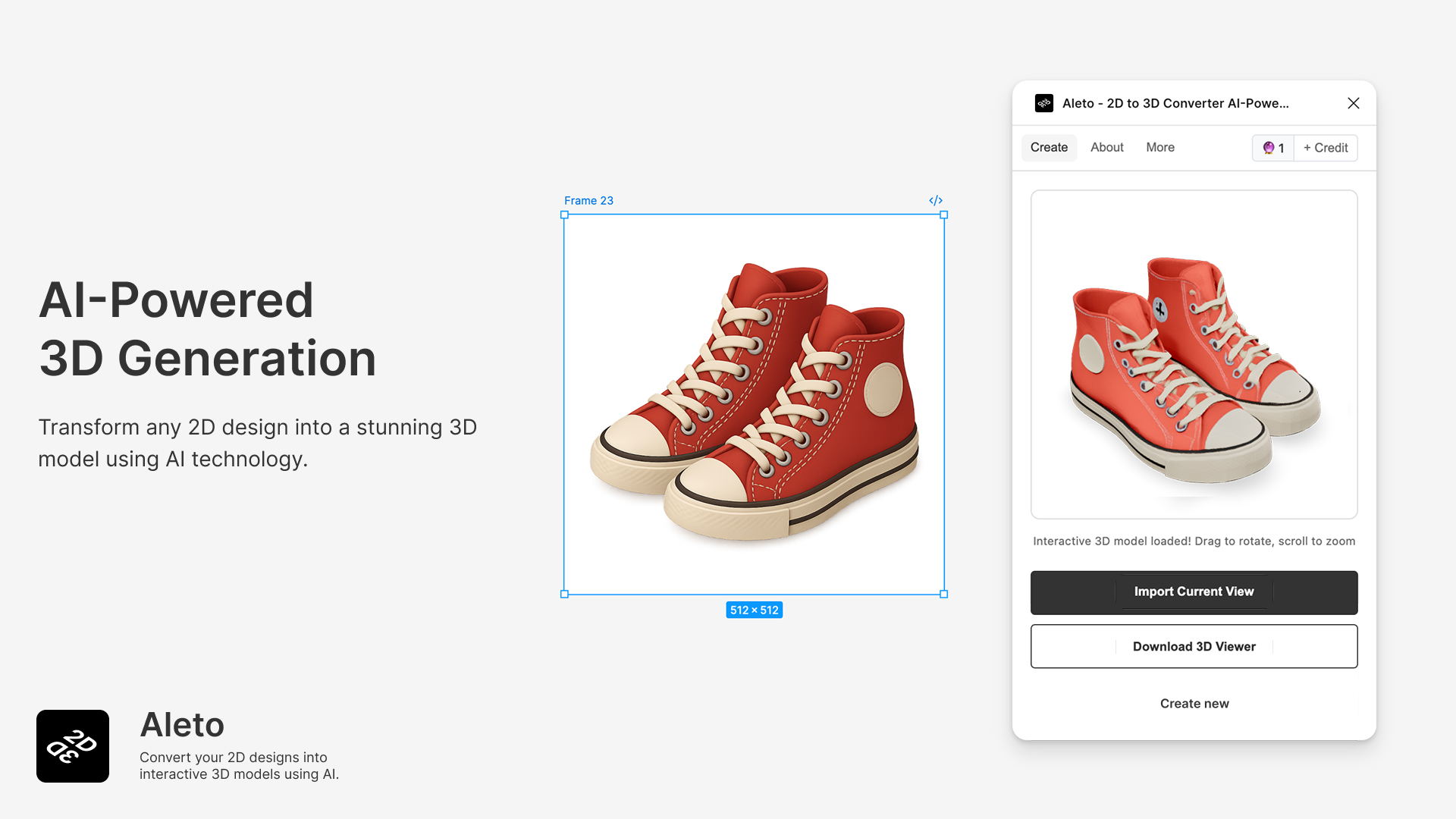
When a client asks "Can you show me this in 3D?" — opening Blender means losing a day, outsourcing means losing a week. Now you can do it with one click inside Figma.
What Is This?
Aleto is an AI plugin that converts 2D designs into 3D models right inside Figma. Built by Achmad Alimin, a product designer from Indonesia, it's growing fast on the Figma Community.
How it works is simple. Select a frame or image in Figma, launch Aleto, pick your preferred 3D style, and the AI generates a 3D model in 2–5 minutes. It accepts nearly any 2D element as input — JPG, PNG, vector graphics, Figma frames, components, you name it.
There are 4 3D styles to choose from:
There's an interactive 3D viewer built right into the plugin — rotate, zoom, and adjust angles without ever leaving Figma. You can capture your favorite angle and drop it straight onto the canvas. For export, it supports GLB format, which is compatible with Blender, Cinema 4D, Unity, and Unreal Engine.
Currently 4,189 users and growing by 200+ new users per week. It's been featured in Figma Plugin Weekly, and a designer's LinkedIn post about it got over 500 likes. The general verdict? "Gives you Blender vibes and it's cute" and "decent quality if you feed it the right images."
What's Actually Different?
There are plenty of ways to create 3D. The problem is most of them require you to leave Figma. Whether you learn Blender or use a web tool like Meshy, you still need to bring the result back into Figma. Aleto's core value is that you never leave your Figma workflow to create 3D.
| Blender (manual) | Meshy (web tool) | Aleto (Figma plugin) | |
|---|---|---|---|
| Learning curve | Months | 30 min | 0 — just click |
| Workspace | Separate app | Web browser | Inside Figma |
| Speed | Hours | ~1 min | 2–5 min |
| Output quality | Best (manual control) | High (PBR textures) | Good (4 styles) |
| Pricing | Free (time cost ↑) | Free tier / $16/mo | 2 free / credit packs |
| Export formats | All formats | FBX, OBJ, GLB + 4 more | GLB only |
Honestly, Meshy and Blender win on output quality and format variety. Meshy supports PBR textures, and Blender goes without saying. But that's not the point. The real value of Aleto is that designers can quickly show 3D mockups without leaving Figma.
Compare within the Figma ecosystem and the picture changes. Most existing Figma 3D plugins are basic CSS transform-based converters (Vector to 3D, Simple 3D), icon-specific (Flamel), or mockup tools (Rotato). Aleto is virtually the only one that generates actual 3D models using AI.
Studies suggest that incorporating 3D elements into design can boost user engagement by roughly 25%. For landing pages, app showcases, and presentations, 3D visuals are becoming a competitive edge, not just a nice-to-have.
When Aleto shines
It's ideal when you need "quick 3D mockups" rather than "perfect 3D" — presentation visuals, social media content, landing page graphics. For production-grade 3D assets, Meshy or Blender is the way to go.
Getting Started: The Essentials
- Install the Aleto plugin
In Figma, go to Resources (Shift+I) → Plugins tab → search "Aleto" → Install. You get 2 free credits upon installation. - Select your design
Pick the frame, image, or component you want to convert to 3D on your Figma canvas. Clean backgrounds with clearly defined subjects produce the best results. - Choose 3D style & detail level
In the Aleto panel, select from Isometric / Realistic / Low-poly / Stylized and set the detail level. - Click Convert to 3D
The AI processes for about 2–5 minutes. Once done, you can preview the result in the interactive 3D viewer — rotate, zoom, adjust angles, all within Figma. - Insert to canvas or export GLB
Capture your favorite angle and drop it onto the Figma canvas, or export as a GLB file for use in Blender, Unity, and more.
Credit note
After using your 2 free credits, you'll need to purchase credit packs on Gumroad. Starting at 20 credits per pack. Failed conversions don't consume credits, and credits never expire.