AI-generated screens look decent, but they never match your design system. Figma just tackled this problem head-on.
What Is This?
On March 24, 2026, Figma launched use_figma, a new MCP tool now in open beta. As the name suggests, it lets AI agents write directly to the Figma canvas.
There was already a Figma MCP server, but it was mostly read-only. You could pull design context for code generation, or use generate_figma_design to convert code into Figma layers. The new use_figma tool is a whole different level. AI agents can now reference your design system and directly create and modify components on the canvas.
It currently supports major MCP clients including Claude Code, Codex, Cursor, Copilot CLI, VS Code, Augment, Factory, Firebender, and Warp. Ed Bayes, design lead at OpenAI's Codex team, said "Codex can now find and use all the important design context in Figma".
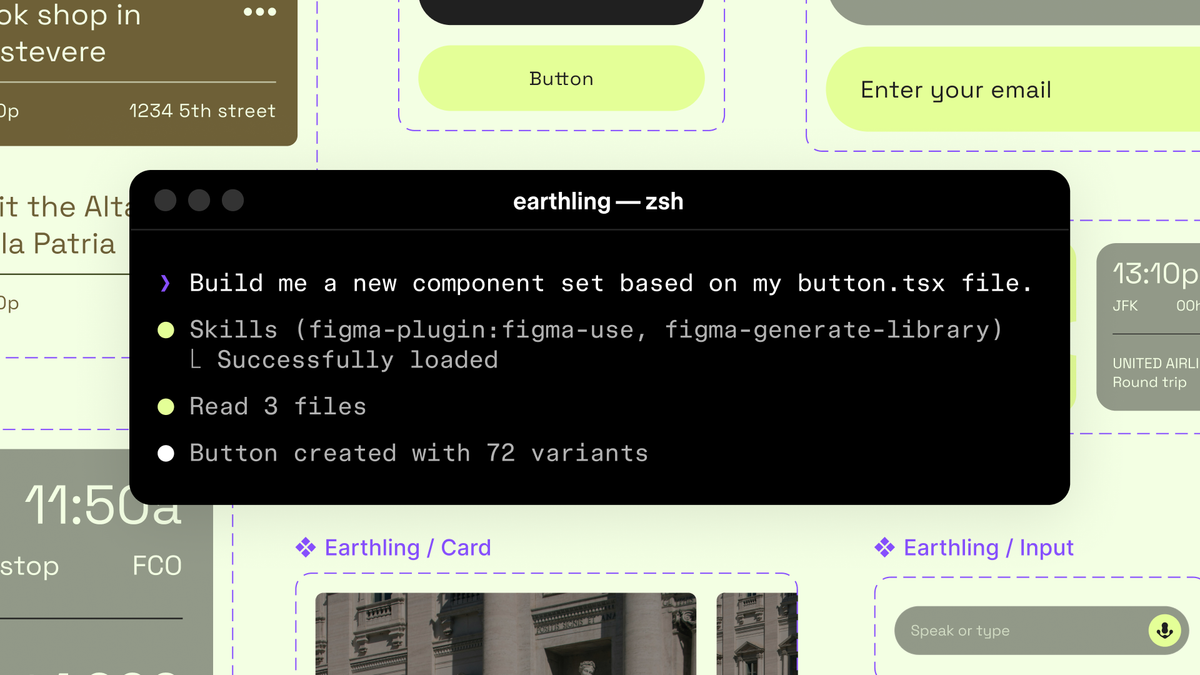
But the real game-changer here is Skills, which launched alongside the tool. Skills are markdown-based instruction sets that define how agents should work on the Figma canvas—which components to use, which variables to apply, and what sequence to follow. No plugin development or coding required. Just markdown.
Skills = Machine-readable design systems
Until now, design systems were documented for humans. Skills translate them into rules AI agents actually follow. Your team's conventions stop being static docs and become active rules applied on every agent run.
Cat Wu, Head of Product for Claude Code at Anthropic, explained that "Skills teach Claude Code how to work directly in the design canvas, so you can build in a way that stays true to your team's intent and judgment".
Nine community-built skills launched on day one, including Uber's accessibility spec generator, Edenspiekermann's design system connector, and Firebender's token sync tool.
Why Does This Matter?
Here's the key shift in one sentence: AI-generated designs are no longer "contextless wireframes." Before this, when you asked AI to generate a screen, it had no idea about your fonts, your component library, or your spacing system—it just produced something that looked "plausible".
| Previous AI Design | use_figma + Skills | |
|---|---|---|
| Design System Awareness | None — generates generic components | Uses actual components/variables from team library |
| Output Quality | Screenshot-level, not editable | Native Figma frames with auto layout and variable bindings |
| Team Convention Enforcement | Re-explain in every prompt | Define once in Skills → auto-applied every run |
| Self-Correction | None | Takes screenshots, verifies output, auto-corrects |
| Security | Data sent to external APIs | Local execution option available (enterprise) |
The self-healing loop is particularly noteworthy. After generating a design, the agent takes a screenshot and automatically fixes anything that doesn't match. Since it's adjusting actual component properties and variables—not patching pixels—the system structure stays intact.
Uber has already used Figma MCP to build a system that cut component spec documentation from weeks to minutes for hundreds of components. They generate screen reader specs for three platforms (VoiceOver, TalkBack, ARIA) from a single prompt in under 2 minutes.
Muzli's analysis nailed it: "Your design system quality just became significantly more important. Messy systems will produce messy outputs. Mature, well-organized systems will produce something genuinely useful".
Getting Started: The Essentials
- Connect the Figma MCP Server
In your MCP client (Claude Code, Cursor, VS Code, etc.), add the remote server URLhttps://mcp.figma.com/mcp. For Claude Code, just runclaude mcp add --transport http figma https://mcp.figma.com/mcp. - Install the Base Skill
Install Figma's foundational skill/figma-use. It teaches agents how Figma works structurally. For Claude Code, runclaude plugin install figma@claude-plugins-official— the plugin includes skills. - Organize Your Design System
Make sure your components, variables, and auto layout are well-structured. Use semantic layer names (CardContainer, notGroup 5), and connect code components via Code Connect for best results. - Write Custom Skills
Define your team's conventions in a markdown file. Create aSKILL.mdin your client's skills directory. Specify rules like "search libraries first, use these variable naming conventions, build with these components". - Prompt and Iterate
Try something like "Create a login screen in this Figma file using existing components." Check results and keep refining your Skills. It's free during the beta period, so experiment freely.
Free During Beta Only
use_figma will become a usage-based paid API in the future. Take advantage of the free beta to build your workflows now.