While other AI tools are looking at Figma screenshots, the Figma agent is reading your components.
As of June 18th, it can search the web too.
How is it different from pasting a screenshot into ChatGPT?
Most AI-assisted design workflows look like this: take a screenshot in Figma, upload it to ChatGPT or Claude, say "improve this." The feedback comes back as pixel-level suggestions, often disconnected from your actual components.
Figma's design agent takes a fundamentally different approach. It was built to understand Figma natively — reading your component library, grasping your design system constraints, and making edits at the component level. It's not looking at a screenshot. It's reading your data.
| External AI (ChatGPT/Claude) | Figma Design Agent | |
|---|---|---|
| Understanding | Screenshot image analysis | Direct component & token reading |
| Editing | Text suggestions only | Applies changes directly on canvas |
| Design system | Has no access | Recognizes your conventions, variables & styles |
| Collaboration | Requires switching tools | Real-time alongside your teammates on canvas |
| Web search | Separate tool required | Available directly in canvas chat |
Figma built deep context on your components, tokens, standards, and best practices directly into the agent — context that third-party AI tools simply can't replicate.
Here's what it can actually do
Here are the highest-impact use cases, starting with what you can try today.
① Direction exploration — "Explore 3 directions for this checkout flow"
The agent can quickly generate multiple design directions for the same problem — creating layers for each approach and building flows optimized for different business goals. The exploration phase that once required a designer to manually build out every idea is now dramatically faster.
② Bulk feedback implementation — 20 comments at once
When a design review generates 20 comments, chasing each one down takes real time. The agent summarizes all feedback and applies the changes directly on canvas. The comment → fix → review → apply loop collapses into a single conversation.
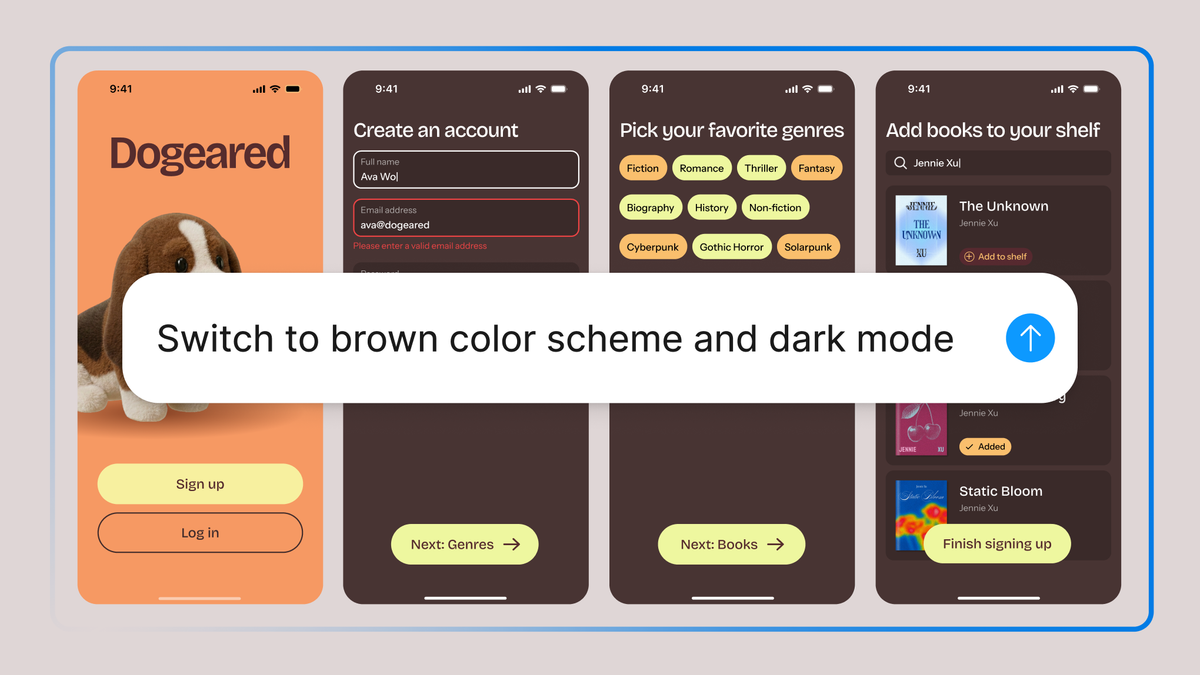
③ Bulk editing — "Swap all buttons to the Primary component"
Renaming, component swaps, spacing updates, flow-level changes — these are the tasks that quietly drain time. The agent handles bulk edits so designers can focus on higher-order decisions.
④ Design review — "Check color contrast on this screen"
Built-in review capabilities include color contrast checks and UX critiques from specific user personas. Accessibility audits and perspective-based feedback can now be delegated to the agent.
⑤ Web search (added June 18) — real content instead of placeholders
The freshest addition, and immediately practical. Web search is now inside the Figma agent. Building an e-commerce UI? Ask the agent to populate it with real product images and prices — it pulls live data from the web and fills in the design, replacing Lorem Ipsum and placeholder images with actual content. Research stays in the file too: "find best practices for this industry's IA" no longer requires switching tabs.
How to enable web search
Prompt "search the web" in chat, or enable it from the plus (+) menu in the chat panel. Org admins on Organization and Enterprise plans can manage the default setting. Individual users need to toggle it on in chat.
How to get started right now
- Check your access
Available for Full seat users on Professional, Organization, and Enterprise plans. Collab and Dev seats can use the agent in drafts. Starter plans are not included. - Activate the agent beta
Open Figma Design and follow the "How do I access the AI agent beta" guide in the official Help Center. Activation steps vary by plan. - Start with bulk edits
A low-stakes first test: "Swap all CTA buttons on this page to the Primary component." You'll immediately see how well the agent understands your design system. - Enable web search
Turn it on in the plus (+) menu, then try: "Find best practices for navigation IA in this industry and propose a structure based on what you find." - Test feedback implementation
Open a file with design comments and ask: "Summarize all design feedback and implement the changes." This is where you save the most time.
AI credits during beta
The agent doesn't consume AI credits during the beta period. Credits will apply after general availability (GA). Right now is the ideal time to put it through its paces for free.
Want to go deeper?
The Figma Design Agent is Here Official launch blog covering the agent's design philosophy and how to access the beta figma.com
Agents, Meet the Figma Canvas Background on opening the canvas to agents and the technical approach behind it figma.com
Figma Design Agent Review: Features, Pros, Cons Independent review of agent capabilities and alternatives animaapp.com
Figma adds an AI assistant to its collaborative canvas TechCrunch reporting at launch techcrunch.com
How do I access the AI agent beta in Figma Design? Step-by-step activation guide from the official Help Center help.figma.com