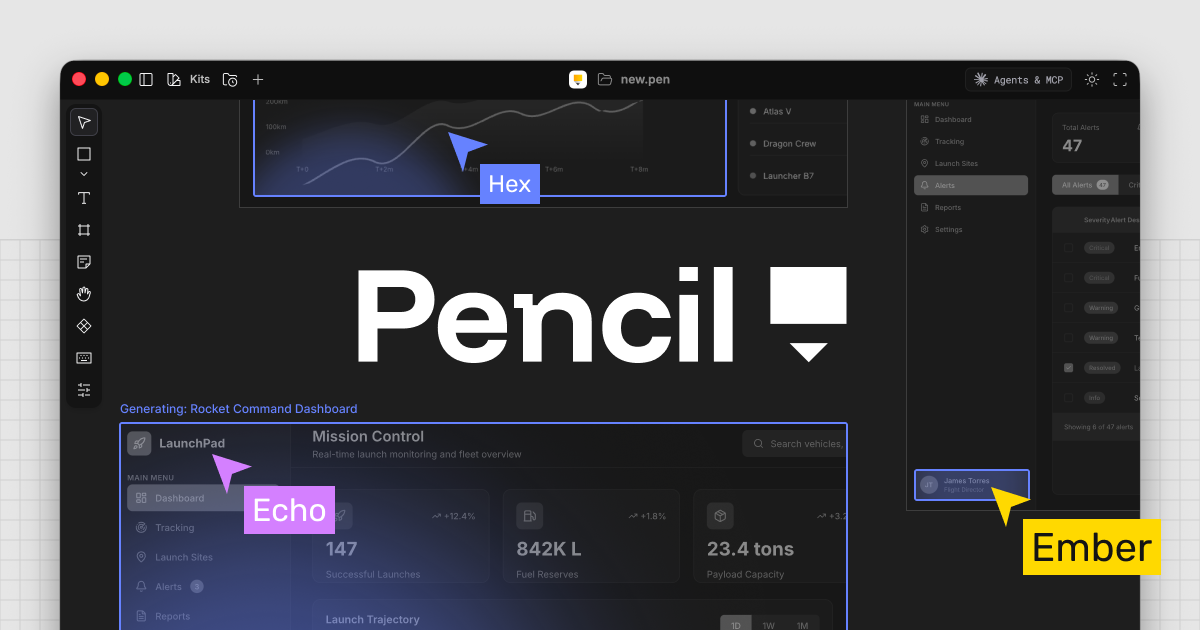
The developer had built 14 screens in code, but only 4 existed in Figma. The agent found the other 10 and put them directly on the Figma canvas. Using design system components.
Wait, what exactly changed?
In May 2026, Figma officially added agent write access (Write to Canvas) to its MCP server. Until now, Figma MCP was one-directional: design to code. AI could read Figma designs and generate code from them. Now the direction has flipped — agents can generate and modify frames directly on the Figma canvas.
There are two core tools. use_figma lets agents create and modify frames on the canvas using your design system's components, variables, and tokens. generate_figma_design converts live app HTML into editable Figma layers.
The list of supported clients has grown dramatically. Claude Code, Cursor, Codex, Warp, Augment, Factory, Firebender, VS Code Copilot — basically every AI coding tool that supports MCP.
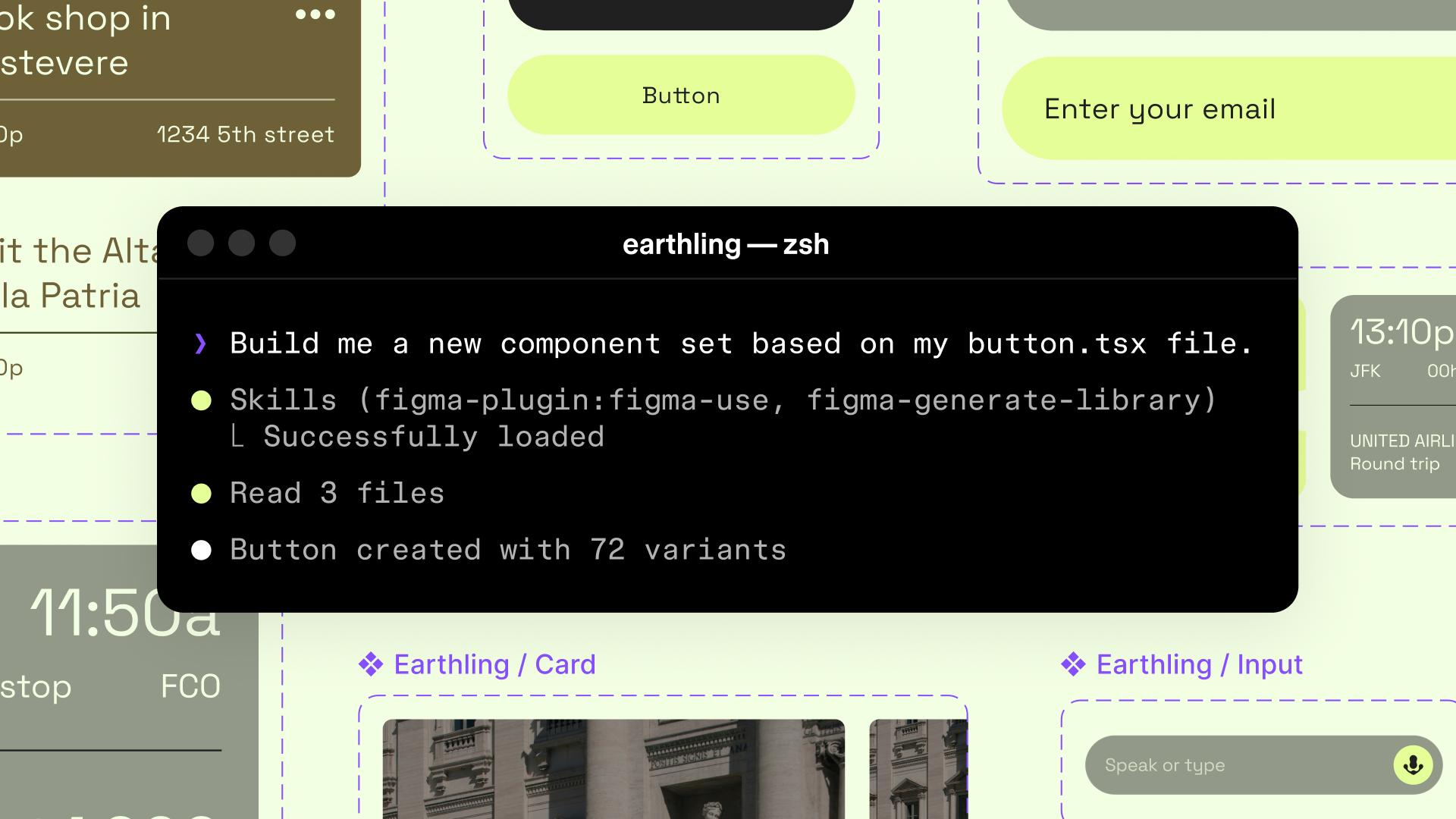
But here's the thing — the real story of this update is the Skills system. Skills are reusable instruction sets that package your team's conventions into markdown files. Write "always use design tokens," "pull only from this component library" once, and the agent follows those rules every single time.
So what actually changes?
The old Figma MCP (read-only) and the new Write to Canvas look similar but they're completely different games. Before, agents pulled design data from Figma to write better code. Now agents actually build things in Figma. With your design system components.
| Old Figma MCP | Write to Canvas | |
|---|---|---|
| Agent access | Read-only (extract design data) | Read + Write (create and modify frames) |
| Design system use | Reference for code generation | Actually generates with real components, variables, tokens |
| Collaboration | Dev tools → manual Figma updates | Canvas stays connected to codebase automatically |
| Team conventions | Re-explain in every prompt | Write Skills once → applied consistently |
Bitovi's Ali Shouman tested this and found that the agent built base components first, then reused them to assemble screens. It's not just screenshotting and uploading — it genuinely understands Figma's component hierarchy.
The limitations are real, though. Without explicit direction, the agent won't automatically detect linked design systems and tends to hardcode values instead of using variables. That's exactly why Skills exist — without them, results are non-deterministic.
Key point
The better your design system, the better the output. Clean naming conventions, well-structured components, and documented token systems directly determine how good the agent's work looks.
Getting started: the essentials
- Connect the MCP server
Remote server (recommended):claude mcp add --transport http figma https://mcp.figma.com/mcp
Requires Figma Professional Plan + Full seat. Dev seats are read-only. - Register Skills files
Download the 9 official Skills from Figma Community./figma-use,/sync-figma-token, etc. Customize to your team conventions and register in your MCP client settings. - Provide context with file URLs
Paste the Figma file URL directly in your prompt: "Create a button component set in this file: figma.com/file/..." - Start small
Begin with one component rather than a complex screen. There is a 20KB output limit, so large tasks need to be broken into steps. - Experiment in Drafts first
Do not start in your production files. Agents can behave unexpectedly. This is beta quality — manual review is required.
Heads up
Image assets and custom fonts are not supported yet. Unpublished components are also excluded from Code Connect integration.